Setup guide · about 10 min
Gmail AI Reply Drafts: setup guide
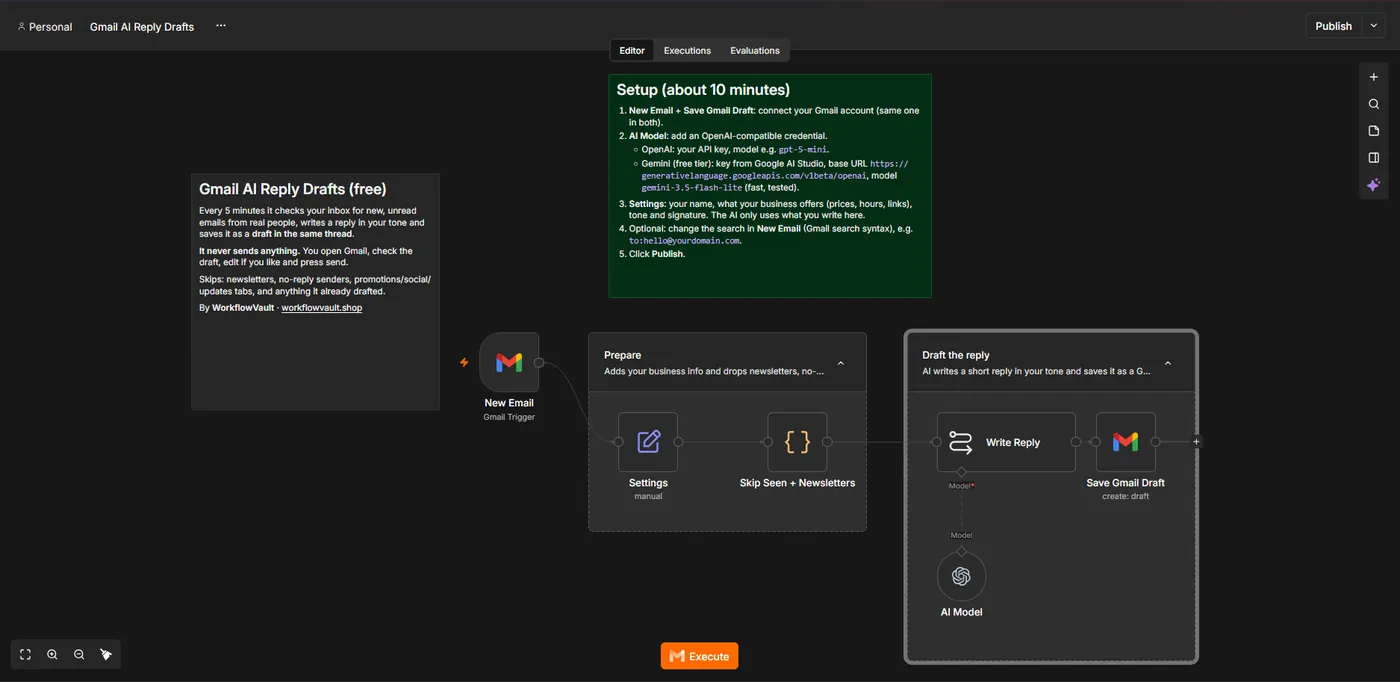
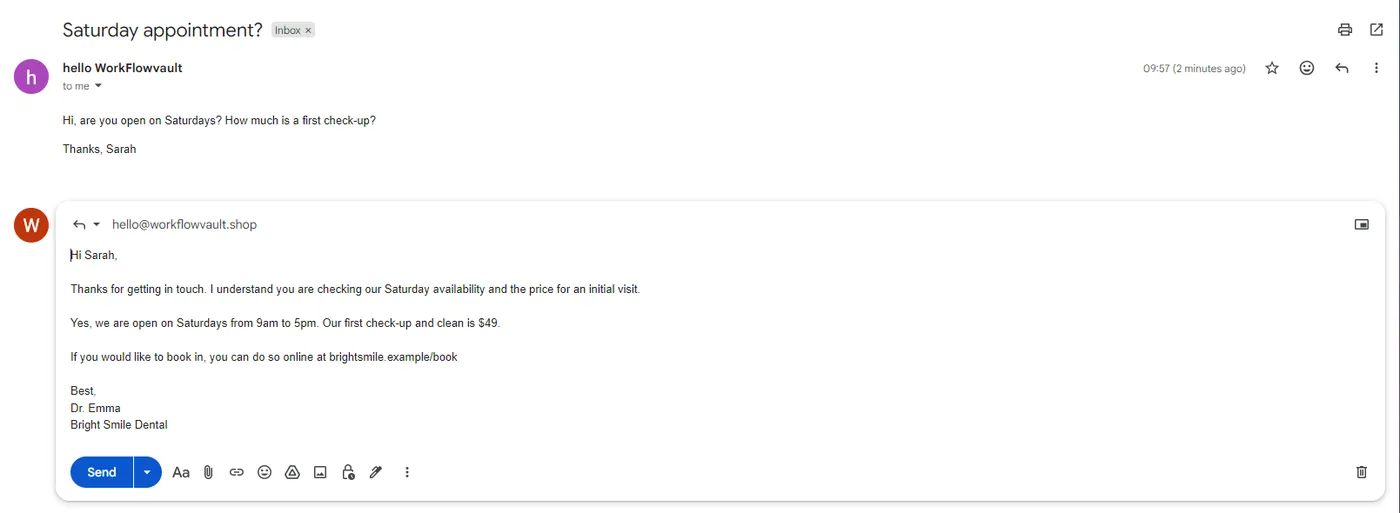
Every 5 minutes it checks for new unread emails from real people. Skip Seen + Newsletters drafts each email only once and ignores automated mail. The AI answers only from the business info you give it, never invents prices or promises, and keeps replies under 140 words. Nothing is sent until you press Send.
How it works
STEP 01
Import the workflow
In n8n open Overview → Create Workflow, then the ⋯ menu (top right) → Import from File and pick the .json file. Sticky notes on the canvas repeat the key steps.
STEP 02
Connect Gmail
Open New Email → Credential → Create new → Sign in with Google. Use the same credential in Save Gmail Draft.
Self-hosted n8n? Google sign-in needs your own OAuth app: in Google Cloud Console create a project, enable the API (Gmail and/or Sheets + Drive), set up the consent screen with yourself as a test user, and create a Web application OAuth client with redirect URI https://YOUR-N8N-URL/rest/oauth2-credential/callback. Paste the Client ID and Secret into the n8n credential.
STEP 03
Connect the AI
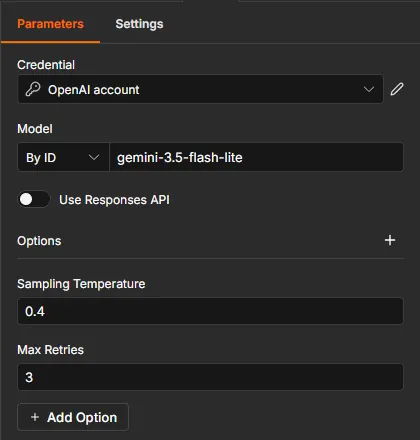
Open AI Model and create an OpenAI credential:
| Gemini (free tier) | OpenAI | |
|---|---|---|
| API key | aistudio.google.com/apikey | platform.openai.com |
| Base URL | https://generativelanguage.googleapis.com/v1beta/openai | default |
| Model (By ID) | gemini-3.5-flash-lite | gpt-5-mini |
For Gemini keep Use Responses API off. Older names like gemini-2.5-flash return a 404 for new keys.
STEP 04
Tell the AI about your business
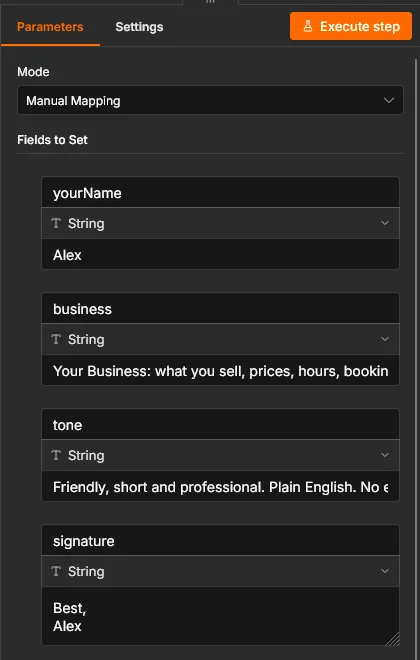
Open Prepare → Settings. The AI uses only what you write here: yourName, business (what you sell, prices, hours, links, policies), tone and signature.
STEP 05
Optional: narrow the inbox search
The search in New Email is in:inbox -category:promotions -category:social -category:updates -from:me. Add any Gmail search, e.g. to:hello@yourdomain.com.
STEP 06
Publish
Click Publish. Send yourself an email from another account to try it.
Troubleshooting
No draft appears
The email must be unread, in the inbox, and not from your own address. No-reply senders and newsletters are skipped on purpose.
AI Model error: 404 / model not found
Check the model ID and Base URL above; use a model your key can access, e.g. gemini-3.5-flash-lite.
Replies are too vague
Add more detail to business in Settings: prices, hours, links, and what you don't offer.
Google sign-in stops working after 7 days
Your OAuth app is in Testing mode. In Google Cloud → OAuth consent screen, click Publish app.
Need help?
Email hello@workflowvault.shop with a screenshot of the node and the error. Want it installed for you? Ask for a Template install.