Setup guide · about 15 min
Backup + Error Alerts: setup guide
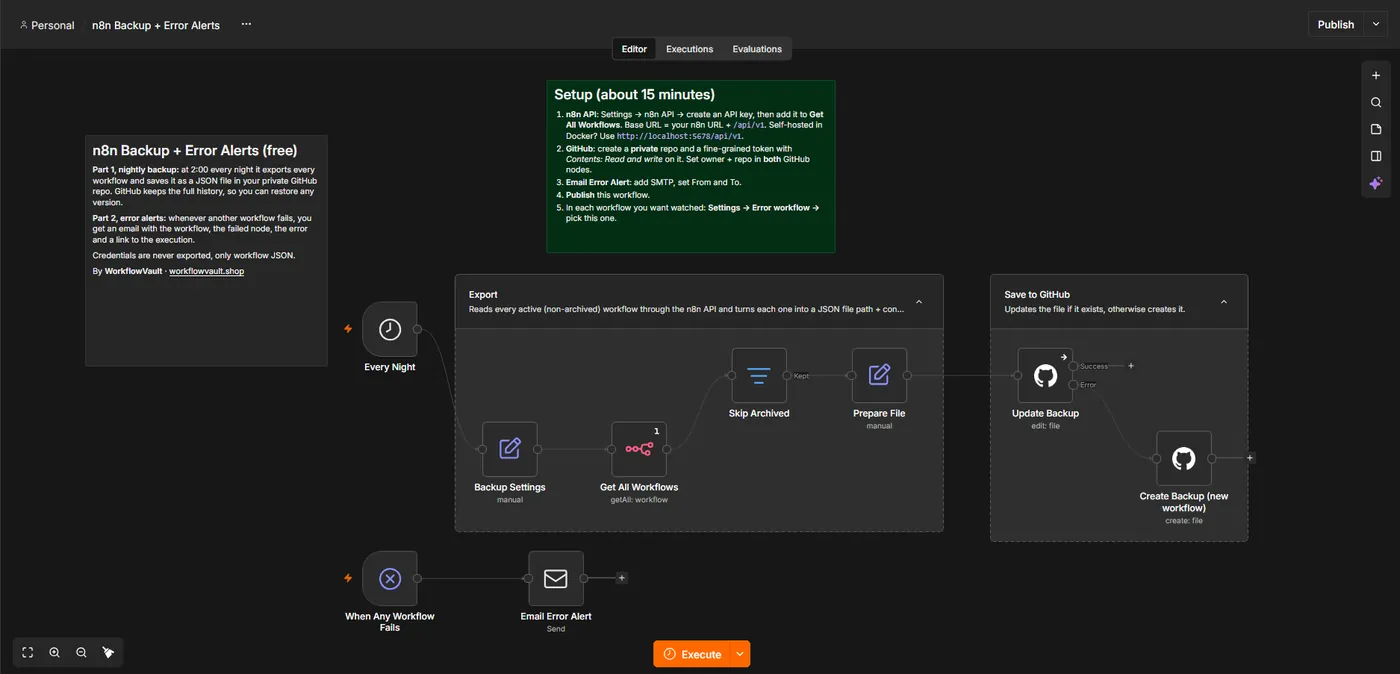
At 2:00 every night it reads every active (non-archived) workflow through the n8n API and saves it to n8n-backups/<name>-<id>.json in your private GitHub repo, updating files that exist and creating new ones. GitHub keeps every version. Credentials are never exported.
How it works
STEP 01
Import the workflow
In n8n open Overview → Create Workflow, then the ⋯ menu (top right) → Import from File and pick the .json file. Sticky notes on the canvas repeat the key steps.
STEP 02
Create an n8n API key
In n8n: Settings → n8n API → Create an API key, then add it to Get All Workflows.
| Where n8n runs | Base URL |
|---|---|
| n8n Cloud or a normal server | https://YOUR-N8N-URL/api/v1 |
| Self-hosted in Docker (connection refused with the URL above) | http://localhost:5678/api/v1 |
STEP 03
Create a private GitHub repo and token
- GitHub → New repository → e.g.
n8n-backups→ Private → tick Add a README. - Profile picture → Settings → Developer settings → Personal access tokens → Fine-grained tokens → Generate.
- Only that repo, permission Contents: Read and write.
- In n8n create a GitHub API credential and set Owner + Repository in both GitHub nodes.
STEP 04
Set up the error email
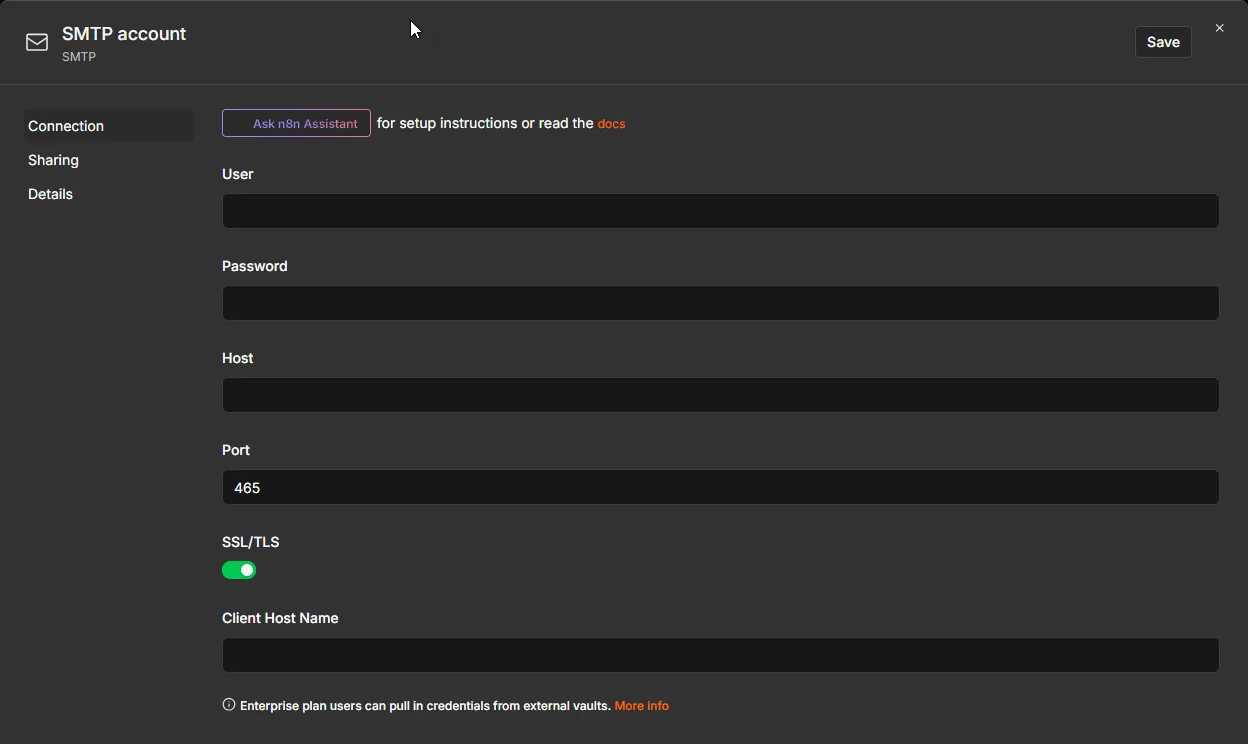
Open Email Error Alert, add SMTP and set From and To.
Click Create credential, search SMTP and fill in your provider's details:
| Field | Gmail | Outlook / Microsoft 365 | Your own domain |
|---|---|---|---|
| Host | smtp.gmail.com | smtp.office365.com | from your email host |
| Port / SSL | 465, SSL on | 587, SSL off (STARTTLS) | usually 465 + SSL |
| Password | an App password | password or app password | mailbox password |
STEP 05
Publish and watch your workflows
Click Publish. In each workflow you want watched: Settings → Error workflow → pick this one. Alerts fire for live runs, not manual tests.
STEP 06
Test it
Select Every Night and click Execute, then refresh your repo. Run it again: files are updated, not duplicated.
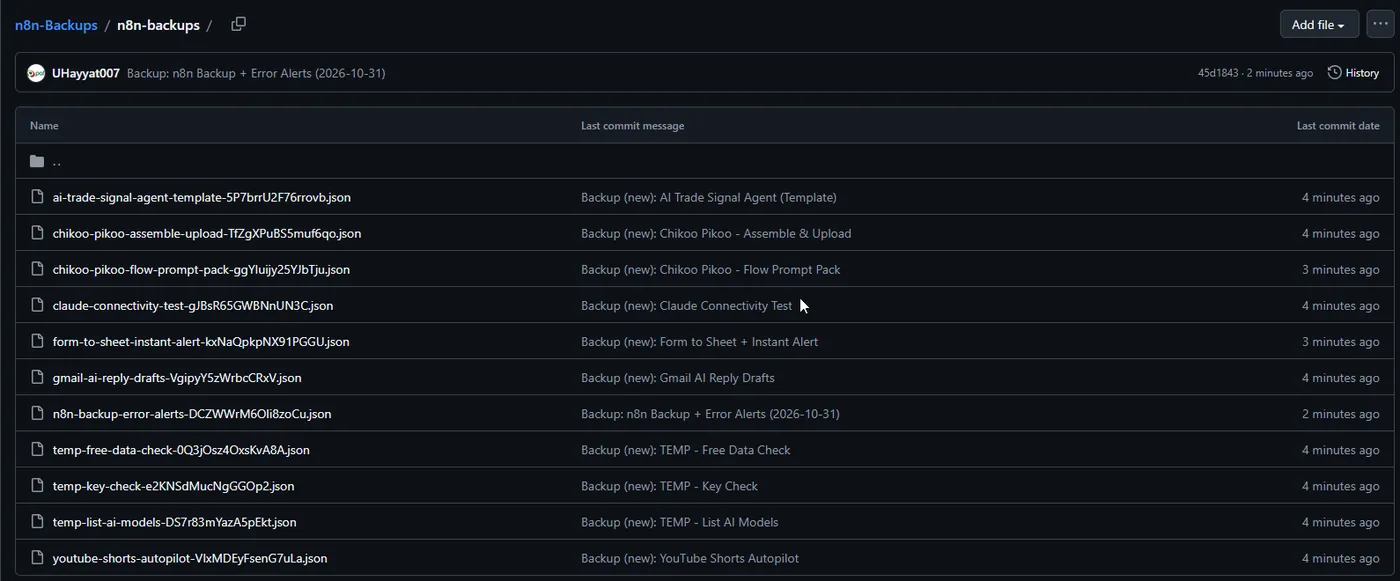
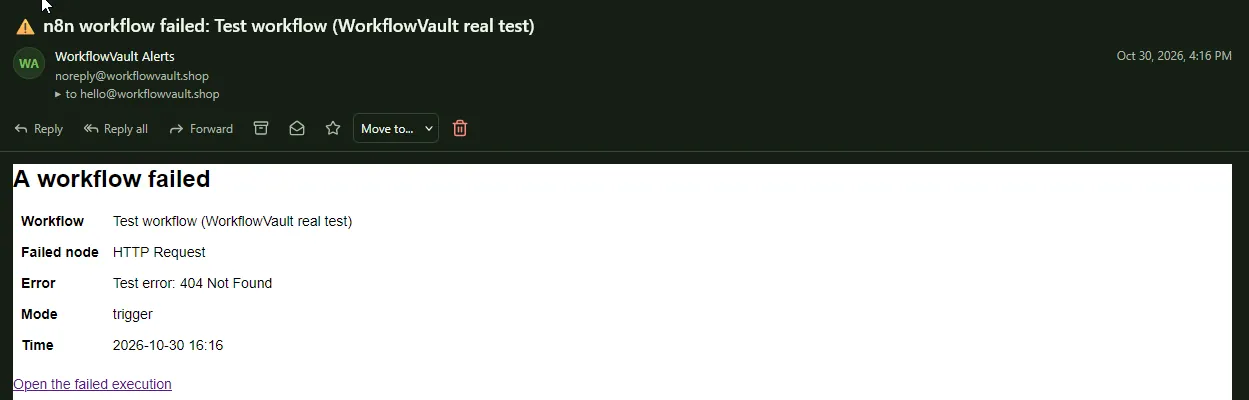
What you'll see
Troubleshooting
Get All Workflows: connection refused
n8n can't reach its own public URL from inside Docker. Use http://localhost:5678/api/v1 as the Base URL.
GitHub: 404 / resource not found
Check Owner and Repository in both GitHub nodes and that the token has Contents: Read and write on that repo.
No error emails
Set this workflow as the Error workflow in the other workflows' settings. Manual test runs don't trigger it.
How do I restore a workflow?
Download the JSON from GitHub (any version from the file's History) and use Import from File in n8n.
Need help?
Email hello@workflowvault.shop with a screenshot of the node and the error. Want it installed for you? Ask for a Template install.