Setup guide · about 5 min
Website Uptime Monitor: setup guide
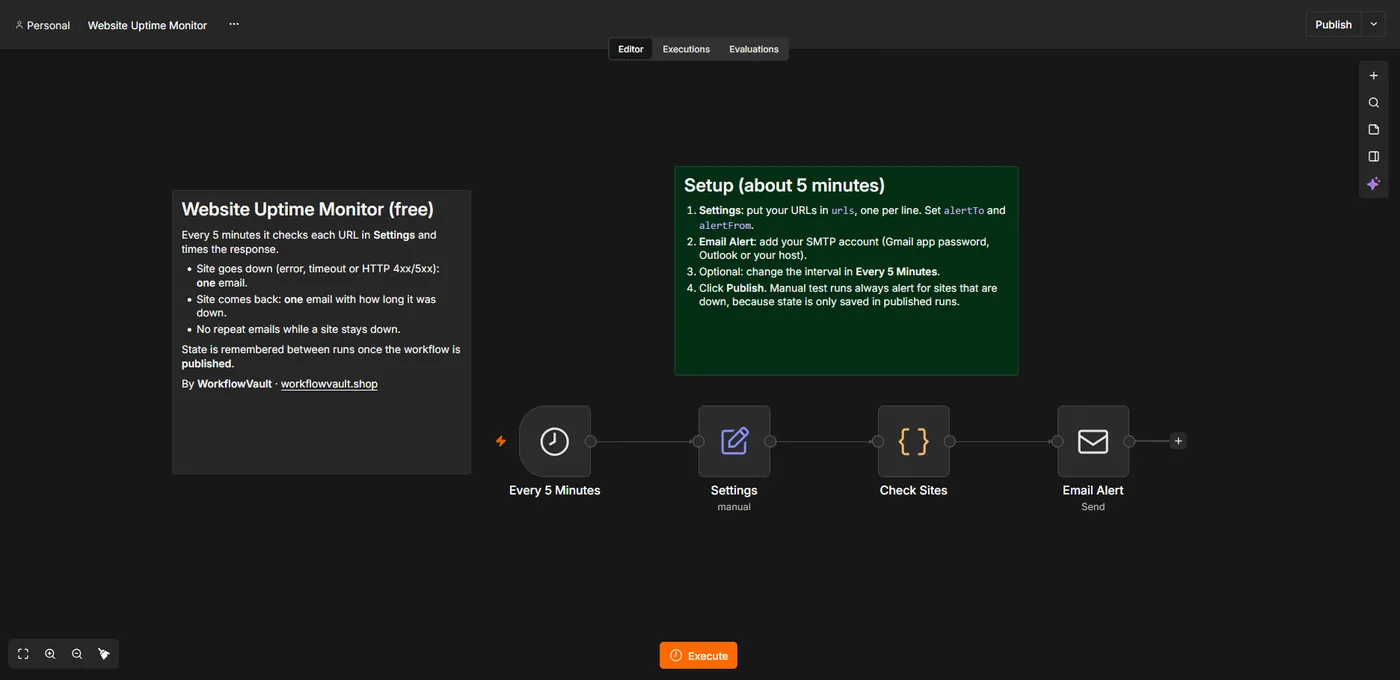
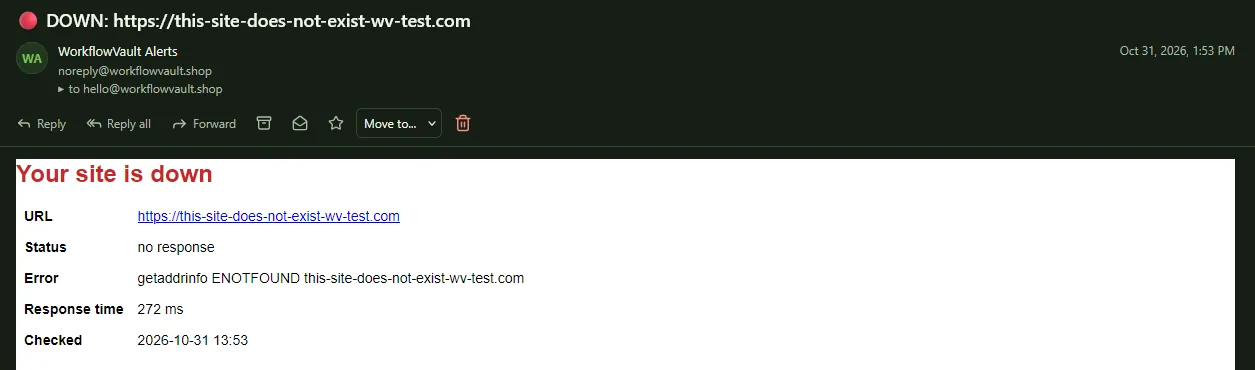
Every 5 minutes it requests each URL in your list, times the response and compares it with the last known state. A site counts as down on a network error, timeout or HTTP 4xx/5xx. You get one email when it goes down and one when it recovers, with the downtime.
How it works
STEP 01
Import the workflow
In n8n open Overview → Create Workflow, then the ⋯ menu (top right) → Import from File and pick the .json file. Sticky notes on the canvas repeat the key steps.
STEP 02
Fill in Settings
- urls: one URL per line.
- alertTo / alertFrom: recipient and a sender your SMTP account may use.
- timeoutSeconds: how long to wait before calling a site down (default 15).
STEP 03
Connect your email (SMTP)
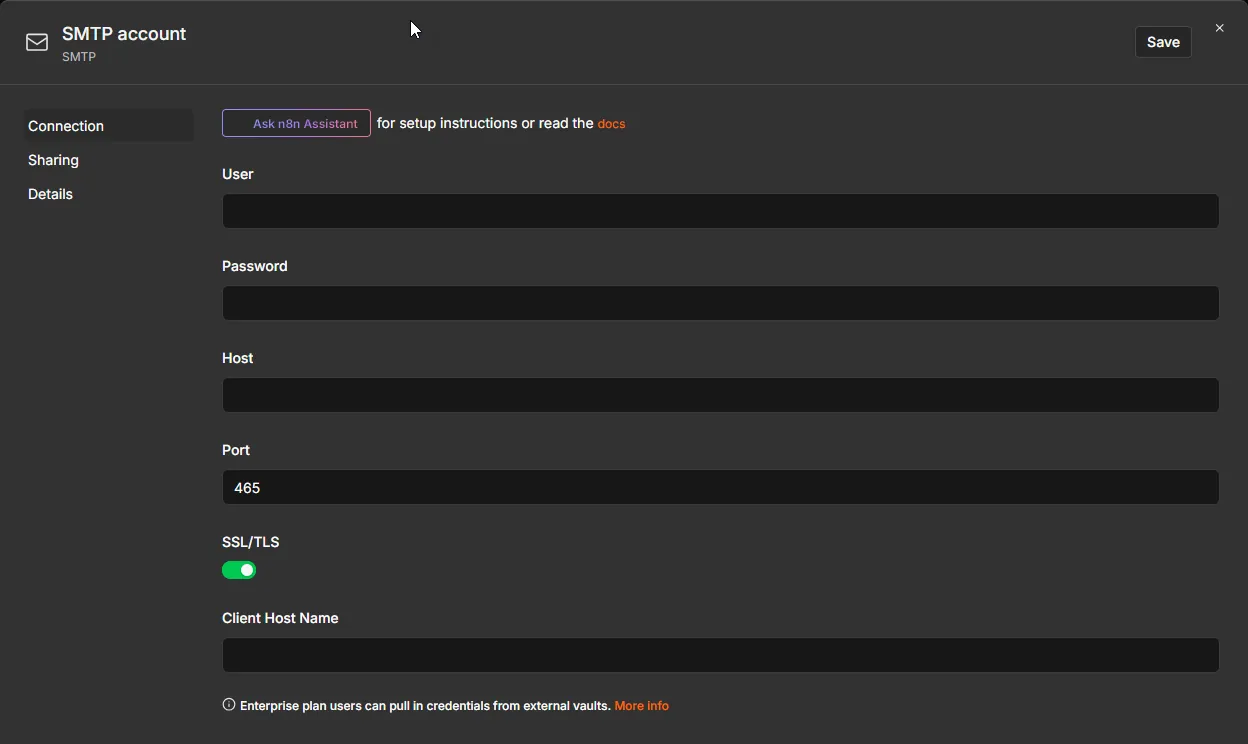
Open Email Alert and add an SMTP credential.
Click Create credential, search SMTP and fill in your provider's details:
| Field | Gmail | Outlook / Microsoft 365 | Your own domain |
|---|---|---|---|
| Host | smtp.gmail.com | smtp.office365.com | from your email host |
| Port / SSL | 465, SSL on | 587, SSL off (STARTTLS) | usually 465 + SSL |
| Password | an App password | password or app password | mailbox password |
STEP 04
Publish
Click Publish. State is saved only in published runs; a manual test run always alerts for sites that are down, which is handy for testing.
What you'll see
Troubleshooting
No email for a site that is still down
It already alerted once for that incident. You'll get the next email when it recovers.
False alarms
Raise timeoutSeconds, or run it from n8n Cloud if your own server's network is the issue.
The page needs a login
Monitor a public page such as the homepage or a health-check URL.
Need help?
Email hello@workflowvault.shop with a screenshot of the node and the error. Want it installed for you? Ask for a Template install.