Setup guide · about 15 min
AI Receipt & Invoice Logger: setup guide
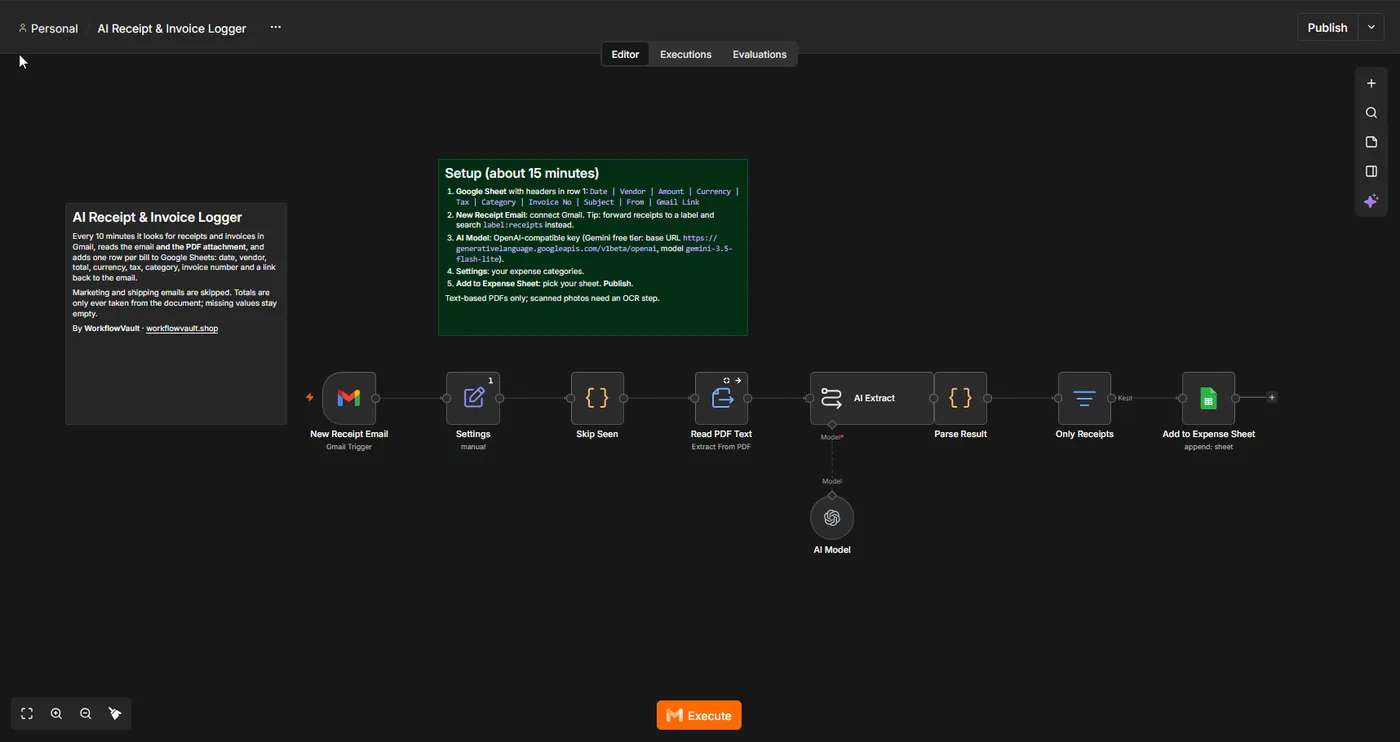
Every 10 minutes it finds receipts and invoices in Gmail, reads the email and the PDF attachment, and asks the AI for vendor, date, total, currency, tax, category and invoice number as strict JSON. Totals only come from the document; missing values stay empty. Marketing and shipping emails are dropped.
How it works
STEP 01
Import the workflow
In n8n open Overview → Create Workflow, then the ⋯ menu (top right) → Import from File and pick the .json file. Sticky notes on the canvas repeat the key steps.
STEP 02
Create the expense sheet
Headers in row 1: Date Vendor Amount Currency Tax Category Invoice No Subject From Gmail Link. Then pick it in Add to Expense Sheet.
STEP 03
Connect Gmail
Connect Gmail in New Receipt Email. Tip: forward receipts to a label and search label:receipts.
Self-hosted n8n? Google sign-in needs your own OAuth app: in Google Cloud Console create a project, enable the API (Gmail and/or Sheets + Drive), set up the consent screen with yourself as a test user, and create a Web application OAuth client with redirect URI https://YOUR-N8N-URL/rest/oauth2-credential/callback. Paste the Client ID and Secret into the n8n credential.
STEP 04
Connect the AI
Same as our other AI templates: an OpenAI credential with your key. Gemini free tier works (base URL https://generativelanguage.googleapis.com/v1beta/openai, model gemini-3.5-flash-lite).
STEP 05
Set your categories, then Publish
In Settings list your bookkeeping categories, then click Publish.
What you'll see

Troubleshooting
A receipt was missed
Check it matches the Gmail search and isn't in Spam.
Amount is empty
The PDF may be a scanned image; add an OCR step or ask us to.
Wrong category
Use clearer category names in Settings.
Need help?
Email hello@workflowvault.shop with a screenshot of the node and the error. Want it installed for you? Ask for a Template install.