n8n · Guide
How to Back Up n8n Workflows to GitHub Automatically
Quick answer
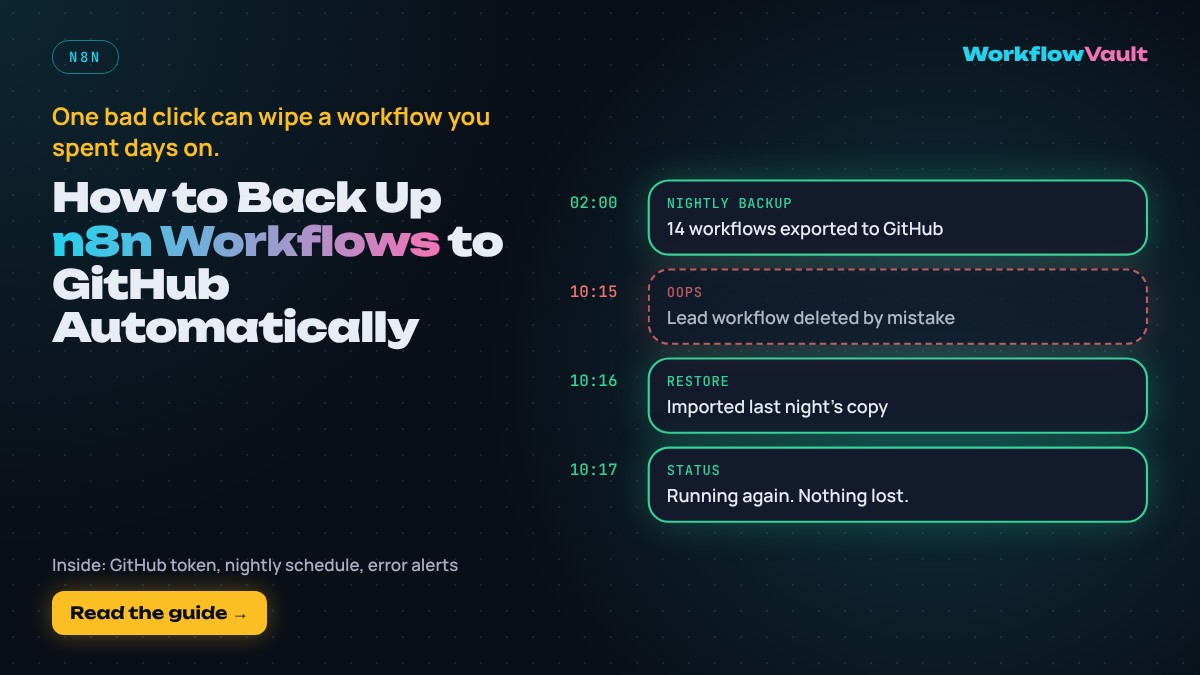
Enable the n8n public API and create an API key, create a private GitHub repository and a fine-grained token, then run a nightly n8n workflow that exports every workflow as JSON through the API and commits changed files to the repo. Add an Error Trigger workflow that emails you whenever any workflow fails.
When you self-host n8n, you own your data, and your backups. A failed server, a bad update or one accidental delete can wipe out weeks of work. Exporting workflows by hand works until you forget. An automatic nightly backup to GitHub takes minutes to set up and gives you full version history for free.
Why GitHub for n8n backups?
- Version history: every change is a commit, so you can see what changed and roll back to any earlier version.
- Off-server: if your n8n server dies, your workflows are safe elsewhere.
- Free and private: private repositories are free on GitHub.
Note that this backs up the workflows themselves. Credentials are not included in workflow exports, and your database and execution history need a separate server or database backup.
What you need
- An n8n API key. In n8n, open Settings, then n8n API, and create a key. On self-hosted n8n the public API is available by default.
- A private GitHub repository, for example
n8n-backups. - A GitHub token with write access to that one repository. A fine-grained personal access token limited to the backup repo with Contents read and write is the safest choice.
How the backup workflow works
- Schedule trigger: once a night, at a quiet hour.
- n8n node: list all workflows through the API.
- For each workflow: turn it into a JSON file named after the workflow.
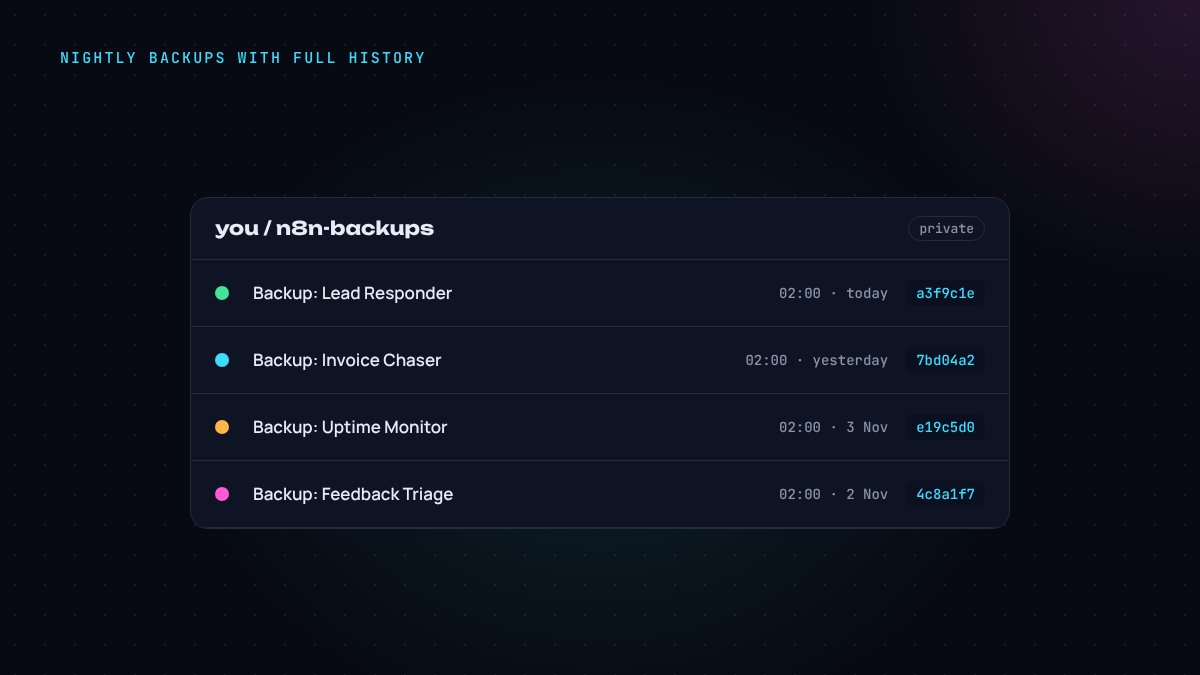
- GitHub node: check whether the file exists and has changed; create or update it with a commit message such as "Backup: Lead Responder".
Only changed workflows create commits, so the history stays clean and readable.
Add error alerts while you are at it
Backups protect you from losing workflows. Error alerts protect you from workflows silently failing. n8n has an Error Trigger node: create a small workflow that starts with it and sends you an email with the workflow name, the failed node and the error message. Then, in each important workflow's settings, choose it as the Error workflow.
Free template
Backup + Error Alerts
Backs up every workflow to a private GitHub repo each night and emails you when any workflow fails. Free, with a PDF setup guide. About 15 minutes to set up.
How to restore a workflow
Open the repository, find the workflow's JSON file (or an older version in its history), download it, and in n8n choose Import from File. Reconnect the credentials, check the settings and publish it again.
Frequently asked questions
How do I back up n8n workflows?
Export them through the n8n API on a schedule and save them somewhere off the server. A nightly workflow that commits JSON files to a private GitHub repo is free and keeps version history.
Does an n8n workflow export include credentials?
No. Credentials are stored separately and are not included in workflow exports, so back up your database or note your credentials separately.
How do I get alerts when an n8n workflow fails?
Create a workflow that starts with the Error Trigger node and sends an email, then select it as the Error workflow in each workflow's settings.
Does this work on n8n Cloud?
Yes, as long as your plan includes API access. n8n Cloud also keeps its own backups, but your own copy in GitHub gives you version history you control.
Templates for this job
Want it built around your exact tools? Custom n8n workflows from $150.