Bookings · Guide
Google Calendar Appointment Reminders: Automatic Email & SMS
Quick answer
Add the client's email to each booking in Google Calendar, then use an automation that checks your calendar every few minutes and emails the client about 24 hours and again about 2 hours before the appointment, with the date, time, place and a link to reschedule. Keep track of what was sent so nobody gets the same reminder twice.
If you run a salon, clinic, studio, tutoring service or any business that lives in Google Calendar, no-shows are lost money. The slot was blocked, you were ready, and nobody came. In most cases the client did not mean to skip; they forgot, mixed up the time, or could not find the address.
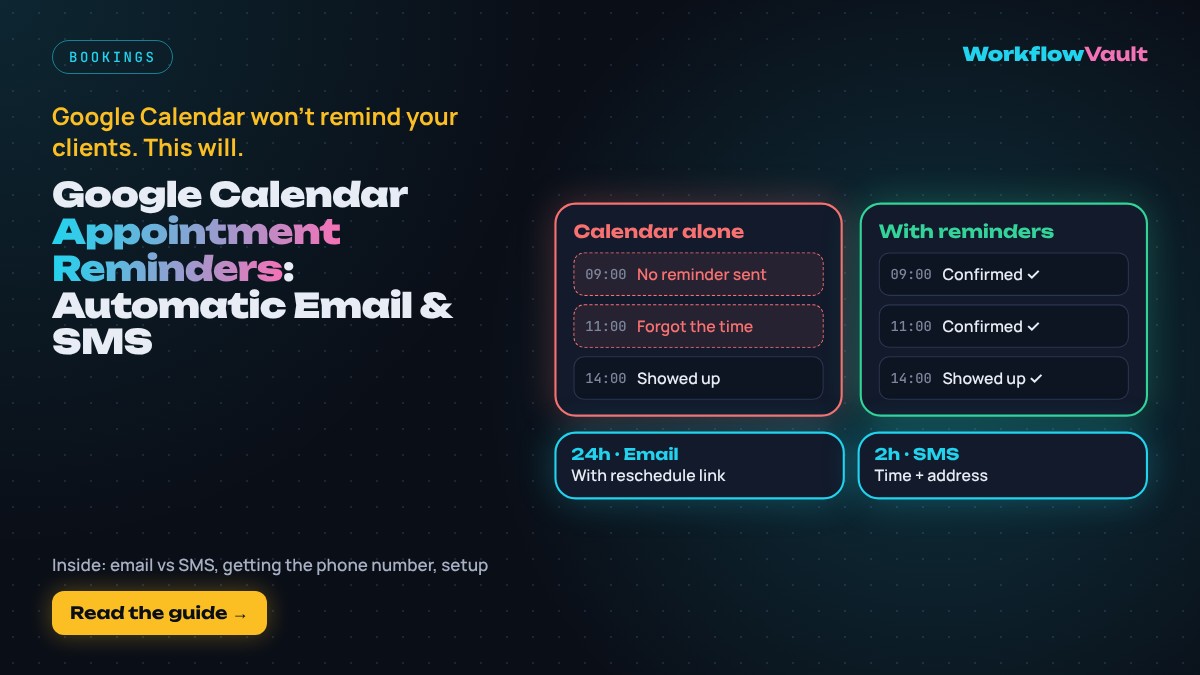
A short reminder fixes most of that, and Google Calendar alone will not send one to your clients. Calendar's own notifications go to you, not to them, unless they accepted an invite and kept notifications on. Here is how to send proper client reminders automatically.
When to send appointment reminders
Two reminders cover almost every business:
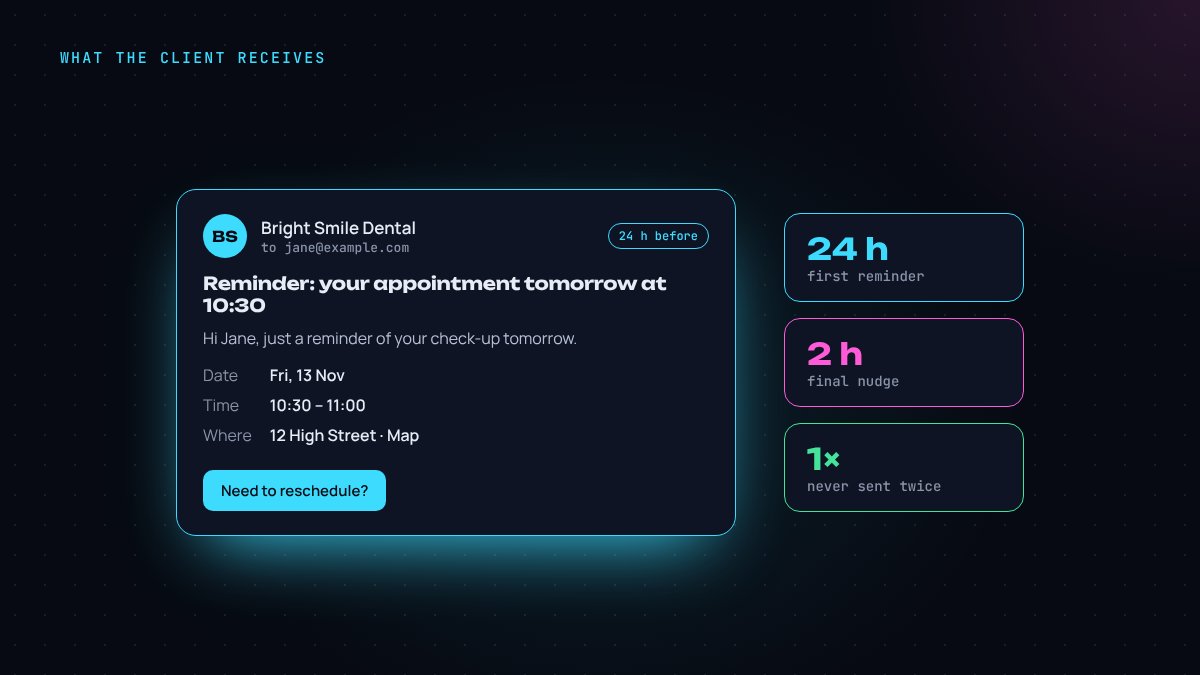
- 24 hours before: gives the client time to reschedule if something has come up, so you can fill the slot instead of losing it.
- 2 hours before: a final nudge with the address and any "what to bring" notes, right when people are planning their day.
For appointments booked weeks ahead, such as consultations or treatments, you can add a third reminder a week before. Avoid sending more than that; too many messages start to feel like spam.
What a good reminder includes
- Who it is from, in the subject line: "Reminder: your appointment with Bright Smile Dental tomorrow at 10:30".
- Date and time, written plainly, in the client's time zone.
- Where: the address with a map link, or the video call link for online sessions.
- How to reschedule: a link or a simple "reply to this email". Making it easy to move a booking is what turns a no-show into a filled slot.
- Anything to prepare, if relevant: documents, parking notes, arrive 10 minutes early.
Keep it under 100 words. It is a reminder, not a newsletter.
Email, SMS or WhatsApp?
Email is free, works everywhere and is the easiest to automate from Google Calendar, so it is the best place to start. SMS and WhatsApp get seen faster, but they need a paid messaging provider and, for WhatsApp, approved message templates. A sensible path is to start with email reminders, see how your no-show rate changes, then add a text message for the 2-hour reminder if you need it.
| Channel | Cost | Best for |
|---|---|---|
| Free with Gmail or any email account | The 24-hour reminder with full details and a reschedule link | |
| SMS / text | Pay per message through an SMS provider | A short 2-hour nudge that gets read fast |
| Pay per message, approved templates needed | Clients who live in WhatsApp |
How to send SMS or text reminders from Google Calendar
Google Calendar does not text your clients by itself. To send SMS appointment reminders you need three things: the client's mobile number on the booking, an SMS provider account (n8n has ready-made nodes for providers such as Twilio), and an automation that reads the calendar and sends the text at the right time.
- Store the phone number in the event description, for example
phone: +15551234567, or let your booking tool add it. - Use the same schedule as the email reminders: the workflow already finds bookings that are 24 hours and 2 hours away.
- Add an SMS step after the email step, with a short message: name, time, place and "reply to reschedule".
- Keep it short: one text, under 160 characters, so it arrives as a single message.
Many businesses keep email for the 24-hour reminder and add SMS only for the 2-hour one, which keeps message costs low.
Text appointment reminders from Google Calendar: your options compared
People searching for "Google Calendar SMS reminders" usually want the client's phone to buzz, not just an email. These are the realistic ways to do it, from cheapest to most polished:
| Option | Cost | Good for | Watch out for |
|---|---|---|---|
| Email reminder only | Free | Most service businesses; clients read email on their phone | Some clients ignore email |
| Email plus SMS through an SMS provider (Twilio, Vonage, MessageBird, local gateways) | A few cents per text | Clinics, salons and trades with frequent no-shows | Needs the client's mobile number in the correct international format |
| WhatsApp Business API | Per conversation | Regions where WhatsApp is the main app | Message templates must be approved first |
| Booking app with built-in reminders | Monthly fee | New businesses that also need online booking | You move your calendar into their system |
The automation is the same for all of them: find bookings that start in about 24 hours or 2 hours, read the client's contact from the event, send the message once, and record that it was sent. Only the last "send" step changes, so you can start with free email and add text messages later without rebuilding anything.
What a good SMS reminder looks like
Keep it under 160 characters so it arrives as one message:
"Hi Sara, reminder: your appointment at Bright Smile Dental is tomorrow at 3:30 PM. Need to change it? Reply or rebook here: [link]"
Name, business, day, time and one link. No long sign-off, no emojis that might not display, and always a way to reschedule; a rescheduled visit is far better than a no-show.
Getting the phone number onto each booking
Put the number in the event description on its own line, for example Phone: +15551234567, or invite the client with an email address and keep the phone in your contacts sheet. The automation reads that line, so the format matters more than where it comes from. If you take bookings online, most booking forms can write the phone number into the calendar event for you.
Appointment reminder templates you can copy
| When | Message |
|---|---|
| 24 hours before | Hi [name], a reminder of your [service] at [business] tomorrow, [day] at [time]. Address: [address]. Need to change it? Reschedule here: [link]. |
| 2 hours before | Hi [name], see you today at [time] for your [service]. Running late or can't make it? Let us know: [link or phone]. |
| After the visit | Thanks for coming in, [name]! If you have a minute, a quick review helps us a lot: [review link]. |
Make rescheduling one click
The reminder that saves the slot is the one that makes it easy to say "I can't make it". Put a clear Reschedule my booking button in every reminder, linked to your booking page, or to a pre-filled reply email if you don't have one. A client who cancels a day early gives you time to fill the slot from your waiting list, instead of simply not turning up.
How to get the client's email into each booking
The automation needs to know who to remind. There are two simple ways:
- Add the client as a guest on the event. This is what most booking tools do automatically.
- Type the email in the event description, for example
client: jane@example.com. Handy when you create bookings by hand from phone calls.
Events without a client email, such as your own lunch break, are simply skipped.
How to set up automatic reminders with n8n
With n8n you can connect Google Calendar and your email account and run the reminders yourself:
- Schedule trigger: run every 15 minutes.
- Google Calendar: fetch events starting in the next 24 to 25 hours, and in the next 2 to 2.25 hours.
- Find the client: take the guest email or pull it from the description.
- Skip duplicates: remember which event and reminder type were already sent, so a moved event or an overlapping run never sends twice.
- Send the email: fill your message with the event's date, time and location and send it through Gmail or any SMTP account.
The duplicate check is the part most do-it-yourself setups get wrong. Without it, clients can receive the same reminder several times, which feels worse than no reminder at all.
Ready-made template
Appointment Reminders
Reads your Google Calendar, finds the client's email on each booking and sends your reminder 24 hours and 2 hours before, with duplicate protection built in. Set up in about 10 minutes.
After the appointment
The same idea works after the visit: a thank-you email with a link to leave a Google review, or a short feedback form. Happy clients are most likely to leave a review within a day or two, and an unhappy one is far better heard by you than on a public review site.
Frequently asked questions
Does Google Calendar send reminders to clients?
Not reliably. Calendar notifications go to people who accepted an invite and kept notifications on. To make sure clients get a clear reminder, send your own email from an automation.
How far in advance should I send an appointment reminder?
24 hours before and again about 2 hours before works for most businesses. Add a one-week reminder for bookings made far in advance.
Can I send appointment reminders by WhatsApp?
Yes, through a WhatsApp Business API provider. It costs per message and needs approved templates, so many businesses start with free email reminders.
Are automatic appointment reminders free?
Email reminders can be. n8n has a free self-hosted option and Gmail can send the messages, so the main cost is the setup time.
Can Google Calendar send SMS reminders to clients?
No, not on its own. Add the client's mobile number to the booking and use an automation with an SMS provider to text them before the appointment.
How do I send appointment reminders automatically?
Put the client's email (or phone) on each calendar booking, then run an automation every 15 minutes that finds bookings 24 hours and 2 hours away and sends each client a reminder once.
Templates for this job
Want it built around your exact tools? Custom n8n workflows from $150.