Getting paid · Guide
How to Automate Invoice Payment Reminders (Without Sounding Pushy)
Quick answer
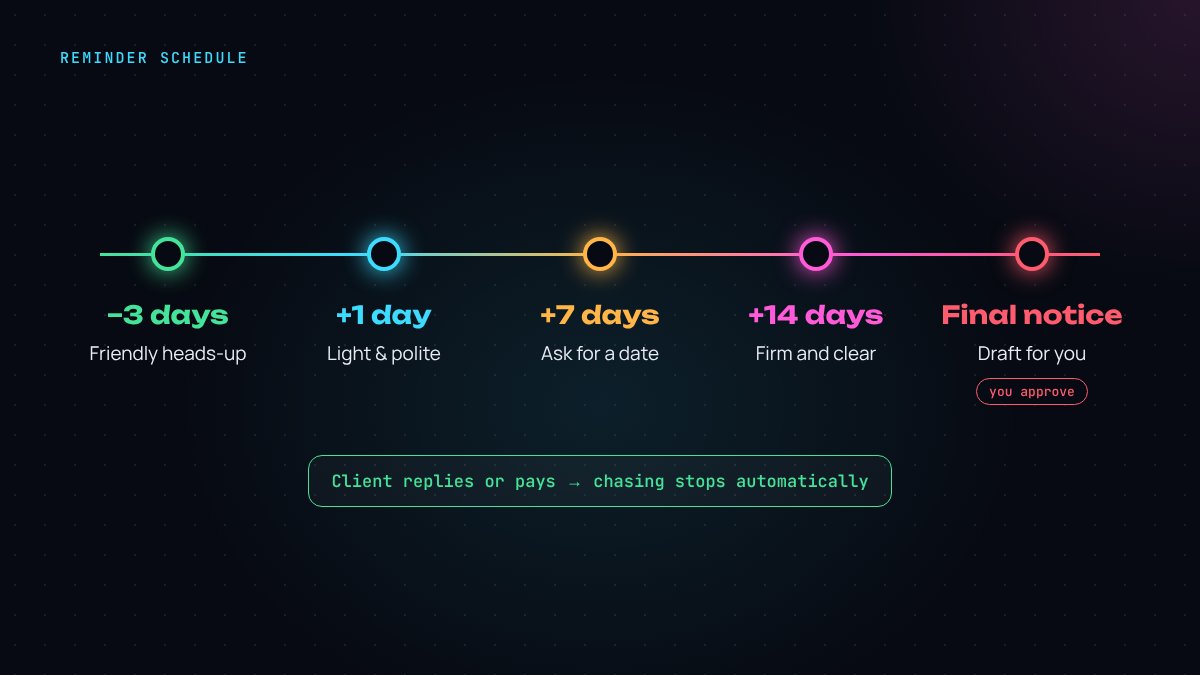
Keep your unpaid invoices in one list, decide a fixed schedule (for example 3 days before the due date, then 1, 7 and 14 days late), write a message for each stage that gets a little firmer, and let an automation send them and stop as soon as the client pays or replies. Keep the final notice as a draft so a human always approves it.
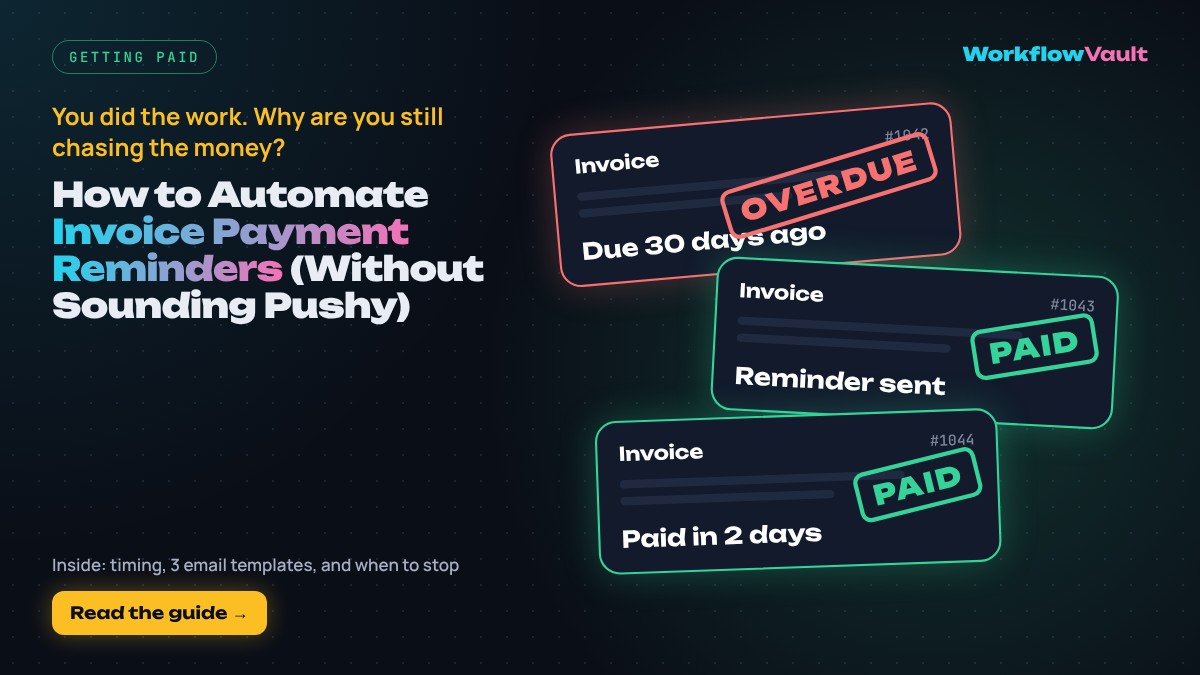
Chasing unpaid invoices is the job almost every small business owner puts off. It feels awkward, it takes time, and when it is done by hand it is easy to forget someone, or to send a stiff message on a bad day. Automating the reminders fixes all three: every invoice is followed up on time, in the same calm tone, and you only step in when a real conversation is needed.
This guide walks through a reminder schedule that works, what to write at each stage, and how to set it up yourself with tools you probably already use.
Why automatic reminders get you paid faster
Most late payments are not refusals. The invoice got buried in an inbox, the person who approves payments was away, or the client simply forgot. A short, friendly nudge at the right moment solves most of these cases. The problem with doing it by hand is consistency: when you are busy, reminders slip by a week or two, and the longer an invoice sits, the harder it becomes to collect.
An automated sequence removes the guesswork. Every invoice gets the same treatment, nothing falls through the cracks, and you stop spending Friday afternoons writing the same email over and over.
A reminder schedule that works
You do not need dozens of emails. Four or five touches over about three weeks is enough for most businesses:
| When | Tone | Goal |
|---|---|---|
| 3 days before due | Friendly heads-up | Make sure the invoice was received and is in the queue |
| 1 day late | Light and polite | Assume they forgot; make paying easy |
| 7 days late | Polite but clear | Ask for a payment date or whether anything is wrong |
| 14 days late | Firm | State the amount, the days overdue and the next step |
| Final notice | Formal | Reviewed and sent by you, never automatically |
Adjust the days to your payment terms. A plumber with 7-day terms may want a tighter schedule than an agency on 30-day terms.
What to write at each stage
Before the due date: keep it short. "Just a quick note that invoice #1042 for $480 is due on Friday. Here's the payment link in case it's handy." No pressure, just visibility.
Just overdue: assume good faith. "Invoice #1042 was due yesterday. If it's already on its way, thank you and please ignore this."
A week overdue: ask a question. Questions get replies. "Could you let me know when we can expect payment, or if there's anything on the invoice you'd like me to check?"
Two weeks overdue: be clear and specific. Mention the amount, the number of days overdue and what happens next, such as pausing work or late fees if your terms include them.
Copy-paste invoice reminder email templates
| Stage | Subject | Body |
|---|---|---|
| 3 days before | Invoice #[number] due on [date] | Hi [name], a quick note that invoice #[number] for [amount] is due on [date]. Here is the payment link: [link]. Thanks! |
| 1 day overdue | Invoice #[number] was due yesterday | Hi [name], invoice #[number] for [amount] was due yesterday. If it is already on its way, thank you and please ignore this. Payment link: [link]. |
| 7 days overdue | Checking in on invoice #[number] | Hi [name], invoice #[number] for [amount] is now a week overdue. Could you let me know when we can expect payment, or if anything on the invoice needs checking? |
| 14 days overdue | Invoice #[number]: 14 days overdue | Hi [name], invoice #[number] for [amount] is 14 days overdue. Please arrange payment by [date] at [link]. As per our terms, [next step, e.g. work pauses] after that date. |
Whatever the stage, always include the invoice number, the exact amount, the due date and a way to pay. The easier you make it, the sooner you get paid.
Rules that stop automation from causing problems
- Stop when the client replies. If someone writes back "we're disputing line 3" or "paying Monday", another automatic reminder is the fastest way to annoy them. The sequence should pause the moment there is a reply.
- Skip paid, disputed and paused invoices. A simple status column handles this.
- Never let AI change numbers. If you use AI to write the wording, the amount, dates and invoice number should come straight from your records, not from the AI.
- Keep a human on the final notice. The last message can affect a relationship. Save it as a draft and send it yourself.
- Send from your own email address. Reminders from your real inbox get read; messages from a no-reply address get ignored.
How to set it up with Google Sheets, Gmail and n8n
You can build this yourself in n8n, an automation tool you can run on its cloud plan or your own server. The basic shape is:
- An invoice sheet. One row per invoice with client name, email, invoice number, amount, due date and status.
- A daily schedule. Every weekday morning the workflow reads the sheet and works out which invoices need a reminder today.
- A reply check. For each one it looks in Gmail for an email from that client since the last reminder, and pauses chasing if it finds one.
- The message. It writes the reminder for the right stage. AI can make each one sound personal while the numbers stay fixed.
- Send or draft. Normal reminders are sent from your Gmail; the final notice is saved as a draft.
- Record it. The sheet is updated with the date and stage, and you get one short summary of who owes what.
Building this from scratch takes a few hours of testing, mostly on the edge cases: missing emails, odd date formats and invoices that were paid between runs.
Ready-made template
Polite Invoice Chaser
All of the above, already built and tested: escalating AI reminders, reply detection, a draft-only final notice and a daily summary. Import it into n8n, connect your Google account and it runs in about 15 minutes.
Should you use your accounting software instead?
Tools like Xero, QuickBooks and FreshBooks include basic reminders, and if you already pay for one, switch them on. A custom workflow makes sense when you invoice from several places, track invoices in a spreadsheet, want reminders sent from your own Gmail, or want them to stop automatically when the client replies, which many built-in reminders do not do.
Frequently asked questions
How many payment reminders should I send?
Four or five over about three weeks is usually enough: one before the due date, then roughly 1, 7 and 14 days late, followed by a final notice you send yourself.
Is it rude to send automatic payment reminders?
Not if they are polite, accurate and stop when the client replies. Most clients appreciate a clear reminder more than a sudden awkward phone call weeks later.
Can AI write invoice reminders?
Yes, AI is good at making each reminder sound personal. Keep the amount, dates and invoice number coming from your own records so they are never changed.
Do I need coding skills to automate invoice reminders?
No. With a ready-made n8n template you import the file, connect your Google account and fill in a few settings.
Templates for this job
Want it built around your exact tools? Custom n8n workflows from $150.