Setup guide · about 20 min
AI Lead Qualifier + Follow-up: setup guide
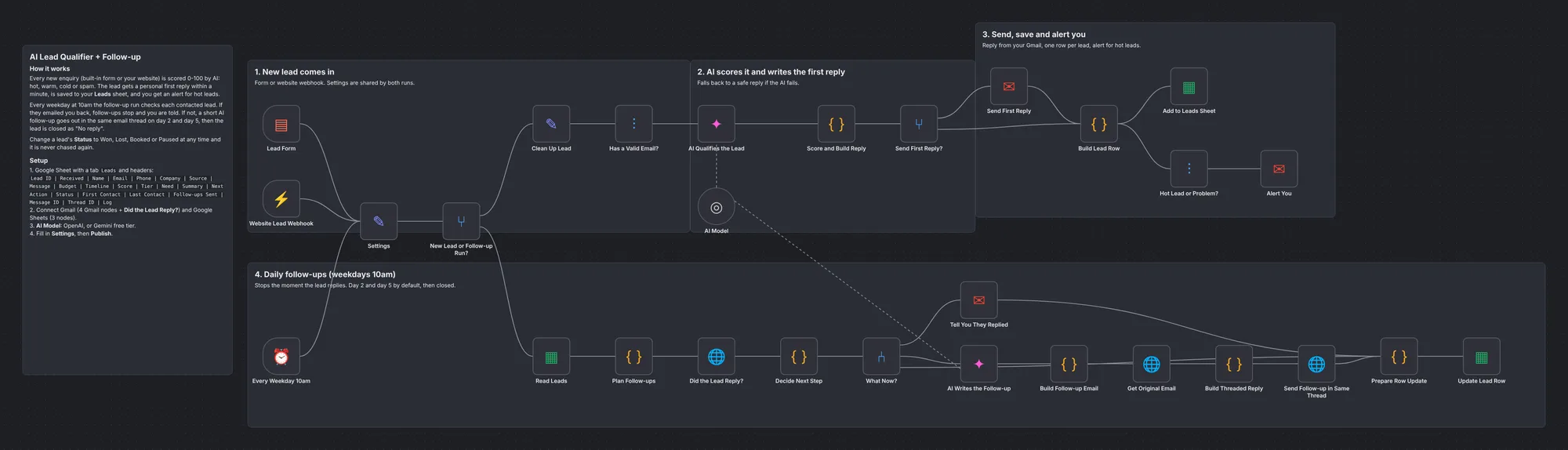
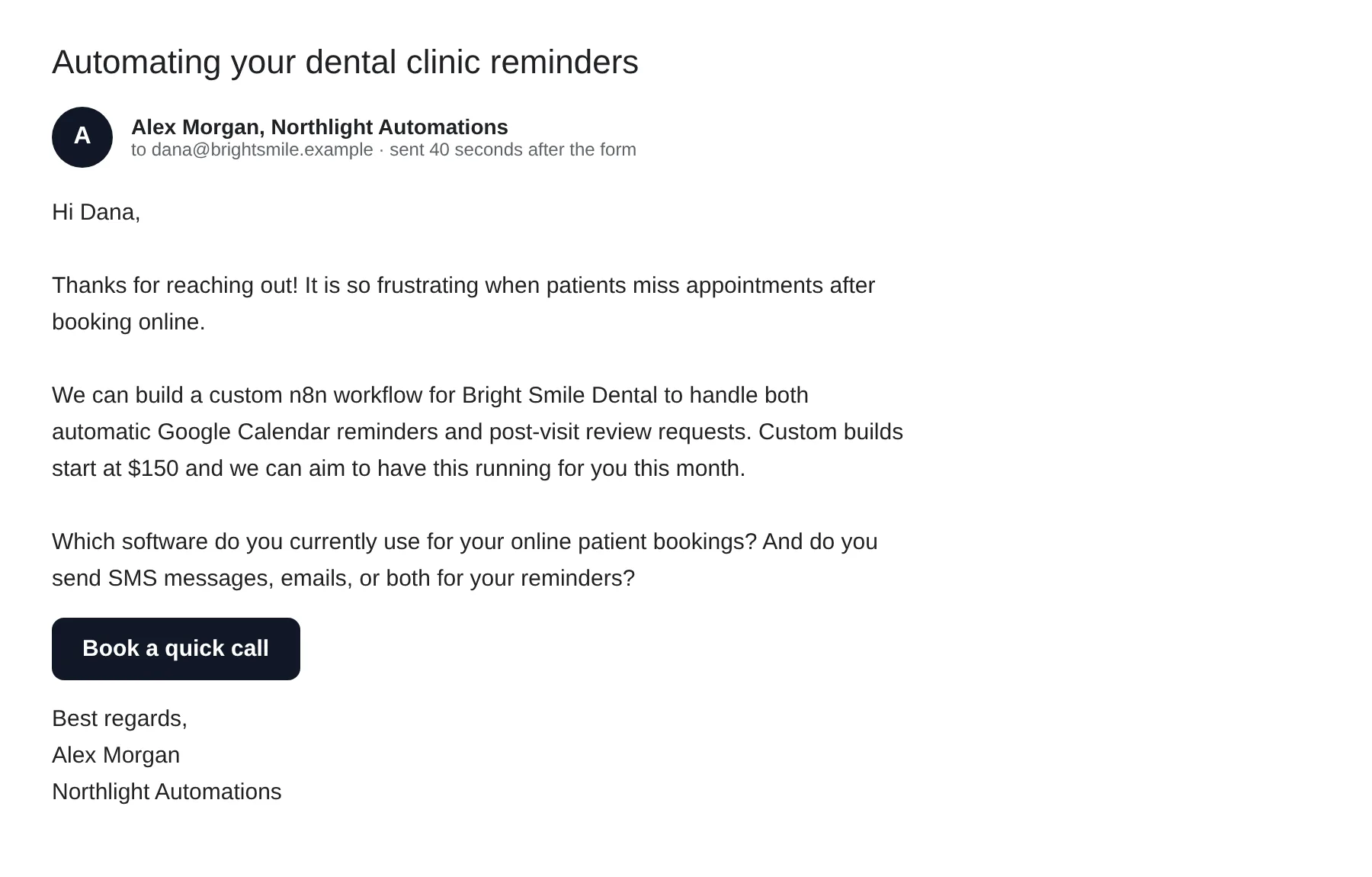
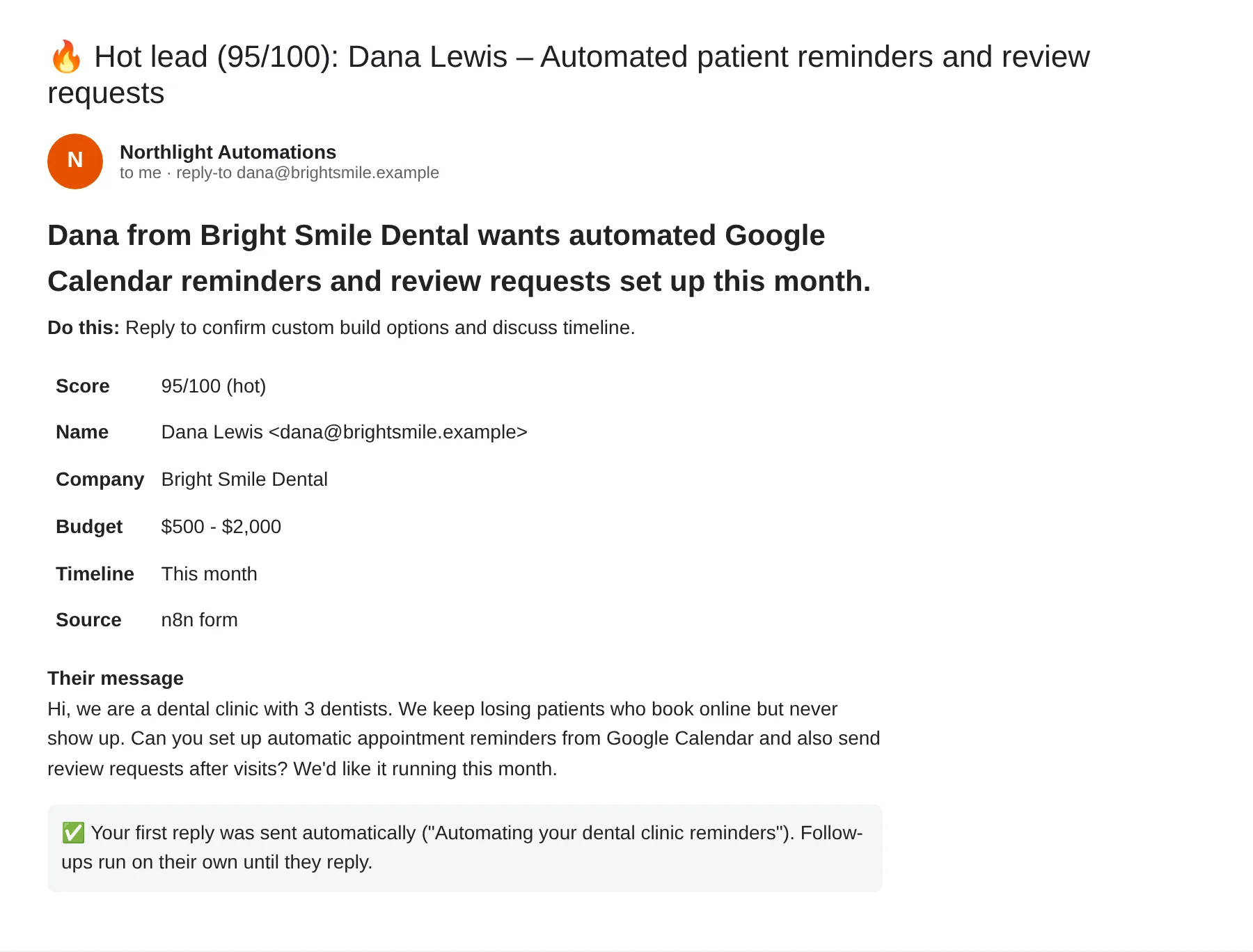
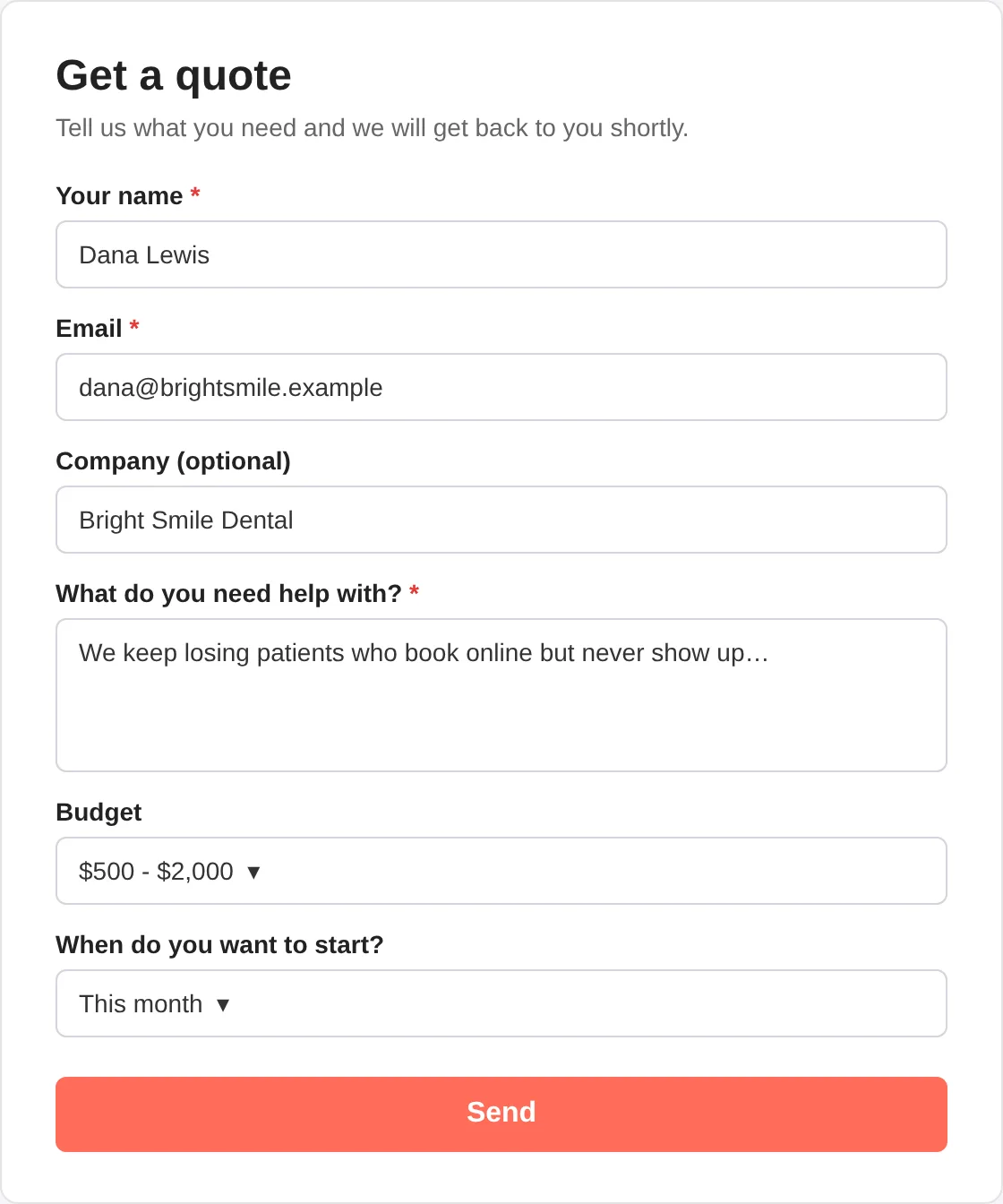
New enquiries arrive from the built-in n8n form or your own website (POST JSON to the webhook). The AI scores each one 0-100 (hot, warm, cold or spam), writes a personal first reply and it is sent from your Gmail within a minute. Every lead is saved to your Leads sheet and hot leads email you. Every weekday at 10am the follow-up run checks each contacted lead: if they emailed you, follow-ups stop and you are told; if not, a short AI follow-up is sent in the same thread on day 2 and day 5, then the lead is closed as No reply.
How it works
STEP 01
Import the workflow
In n8n open Overview → Create Workflow, then the ⋯ menu (top right) → Import from File and pick the .json file. Sticky notes on the canvas repeat the key steps.
STEP 02
Create the Leads sheet
Tab name Leads, headers in row 1: Lead ID Received Name Email Phone Company Source Message Budget Timeline Score Tier Need Summary Next Action Status First Contact Last Contact Follow-ups Sent Message ID Thread ID Log. The workflow fills all of them.
STEP 03
Connect Gmail, Google Sheets and AI
A Gmail credential on the four Gmail nodes and the three HTTP nodes that talk to Gmail (Did the Lead Reply?, Get Original Email, Send Follow-up in Same Thread: Authentication Predefined, type Gmail OAuth2). A Google Sheets credential on the three sheet nodes, picking your sheet. An OpenAI credential in AI Model (Gemini free tier: base URL https://generativelanguage.googleapis.com/v1beta/openai, model gemini-3.5-flash-lite).
Self-hosted n8n? Google sign-in needs your own OAuth app: in Google Cloud Console enable the Gmail, Sheets and Drive APIs, set up the consent screen with yourself as a test user, and create a Web application OAuth client with redirect URI https://YOUR-N8N-URL/rest/oauth2-credential/callback.
STEP 04
Fill in Settings
businessName, senderName, ownerEmail (where alerts go), whatYouSell (2-3 sentences the AI uses to answer and score), optional bookingLink (adds a Book a call button), replyTone, followUpDays (default 2, 5), followUpColdLeads, hotScore (default 70) and your timezone.
STEP 05
Publish and test
Click Publish, open the Lead Form Production URL and submit a test lead using your own second email address. Within a minute you get the reply, the row appears in the sheet and a hot lead alerts you. To use your own site form, POST { name, email, phone, company, message, budget, timeline, page } to the Website Lead Webhook Production URL.
What you'll see

Troubleshooting
No reply was sent
Check the Gmail credential and the Log column. Spam leads and sendFirstReply = false never get a reply.
Follow-ups aren't going out
Only rows with Status Contacted or Following up and a Message ID are followed up, and cold leads only if followUpColdLeads is true. The run is weekdays at 10am in your n8n timezone.
It stopped chasing a lead
Any email from the lead since the first reply stops it and sets Status to Replied. Set it back to Following up to resume.
How do I stop one lead?
Set Status to Won, Lost, Booked or Paused.
Need help?
Email hello@workflowvault.shop with a screenshot of the node and the error. Want it installed for you? Ask for a Template install.