Customers · Guide
How To Answer Customer Questions Quickly Without Typing
Quick answer
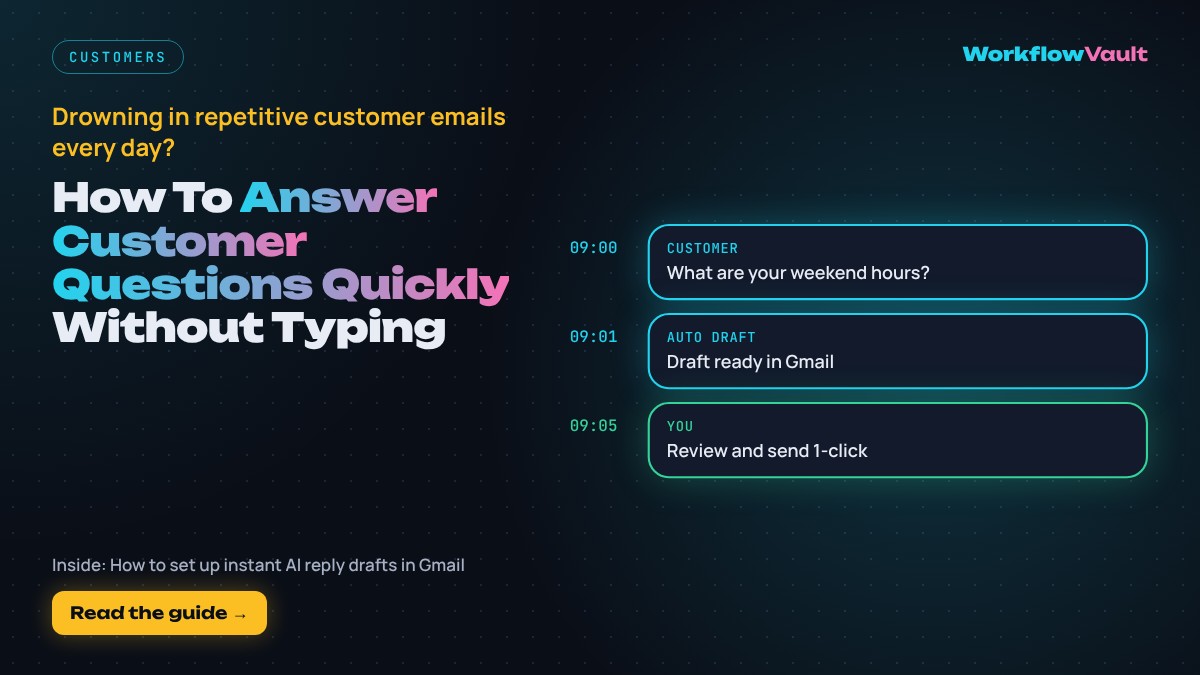
To answer customer questions quickly, set up an automated system that reads incoming emails, matches them against common inquiries, and prepares a draft reply for your review in seconds.
When your inbox fills up with the same routine questions every single day, responding to each person one by one drains your energy. Small business owners often spend hours tapping out the exact same answers about pricing, operating hours, and availability.
This article shows you how to stop typing repetitive messages and let automation handle the heavy lifting while you keep total control over what gets sent.
The True Cost of a Slow Inbox
Every minute a customer waits for an answer is a minute they might spend looking at a competitor instead. When you are out on a job, serving clients in your shop, or away from your desk, your inbox sits there gathering dust.
Customers expect fast responses. If they ask a simple question about your services and hear nothing for hours, their excitement cools down. Speed wins business, but manually answering every message burns you out.
The secret is not hiring a full-time support agent before you are ready. The secret is setting up intelligent systems that do the first round of typing for you, leaving just a quick review step on your phone or computer.
Categorize Your Most Common Inquiries
Before you automate anything, take a close look at your sent items folder over the past month. You will quickly notice that nearly every email falls into one of a few distinct buckets.
Most messages ask about pricing, booking procedures, location details, or specific service requirements. By grouping these together, you can see exactly where your time goes and which answers need to be written down clearly.
Having clear, standard answers ready is the foundation of fast communication. Once you know what people ask most often, you can teach a system to recognize those exact patterns the moment an email arrives.
Let AI Draft Your Routine Replies
Instead of copying and pasting from a notes document every time, you can use automation tools to draft replies directly inside your email client. This means when a customer asks a familiar question, the answer is already sitting in your drafts folder.
You simply open your email, read the AI-prepared draft, make any tiny tweaks needed to match the specific situation, and hit send. This cuts your typing time down to almost nothing.
The goal is not to send robotic, unfeeling text that sounds like a machine. The goal is to produce a natural-sounding response that respects your tone, your voice, and your business standards.
Review and Send in Seconds
Automation should never take away your final say. Keeping a human in the loop ensures that weird edge cases, VIP clients, or unusual requests never slip through the cracks with a generic reply.
When you use a system like Gmail AI Reply Drafts, every email that matches your filters gets a custom draft waiting for your approval. You stay in the driver's seat at all times.
Checking your drafts on your phone while waiting for your next appointment lets you clear out your entire inbox in minutes rather than hours.
Compare Manual vs Automated Inbox Handling
Moving from manual typing to automated drafts changes how your entire workday feels. Here is a clear look at how the two approaches compare for a busy owner.
| Task | Manual Approach | Automated Drafts |
|---|---|---|
| Reading incoming mail | Done one by one | Instant scan and tag |
| Writing standard answers | Copied from notes | Drafted by AI instantly |
| Inbox clearance speed | Hours of typing daily | Minutes of quick reviews |
| Human oversight | Full control | Full control with approval |
The workflow, step by step
- An incoming customer email arrives in your business inbox.
- The automation tool checks the message content against your selected filters.
- Artificial intelligence reads the question and drafts a personal reply based on your guidelines.
- The draft appears directly inside your email account with all relevant details filled in.
- You open your drafts, review the text, and hit send when you are ready.
Common Mistakes to Avoid
Never let fully automatic sending handle complex customer support questions without your review. Even the smartest tools can occasionally miss nuance, which is why having a draft stage is essential.
Another mistake is writing overly long replies when the customer just wants a direct answer. Keep your response templates concise, friendly, and easy to read on a mobile phone screen.
Finally, do not forget to update your templates when your prices, hours, or services change. Outdated draft templates lead to confused customers and extra back-and-forth emails.
Start Saving Inbox Time Today
An organized inbox gives you mental freedom and keeps your customers happy with lightning-fast replies. By letting technology handle the initial draft work, you reclaim your evenings and focus on growing your business.
Take a look at how our Gmail AI Reply Drafts template can transform your daily email routine without changing the way you manage your business.
Frequently asked questions
Will customers know an AI helped write the reply?
No, because the draft uses your tone and you always review and send every message yourself before it leaves your inbox.
Can I edit the draft before sending it?
Yes. The system creates a draft inside your email client, giving you total freedom to change any word before clicking send.
Do I need technical skills to set this up?
Not at all. You connect your email account, choose your filter rules, and the template handles the rest.
What kinds of questions work best for this?
Routine inquiries about pricing, availability, operating hours, and basic service details are perfect for automated drafts.
Templates for this job
Want it built around your exact tools? Custom n8n workflows from $150.