Bookings · Guide
How to Stop Appointment No Shows in Your Business
Quick answer
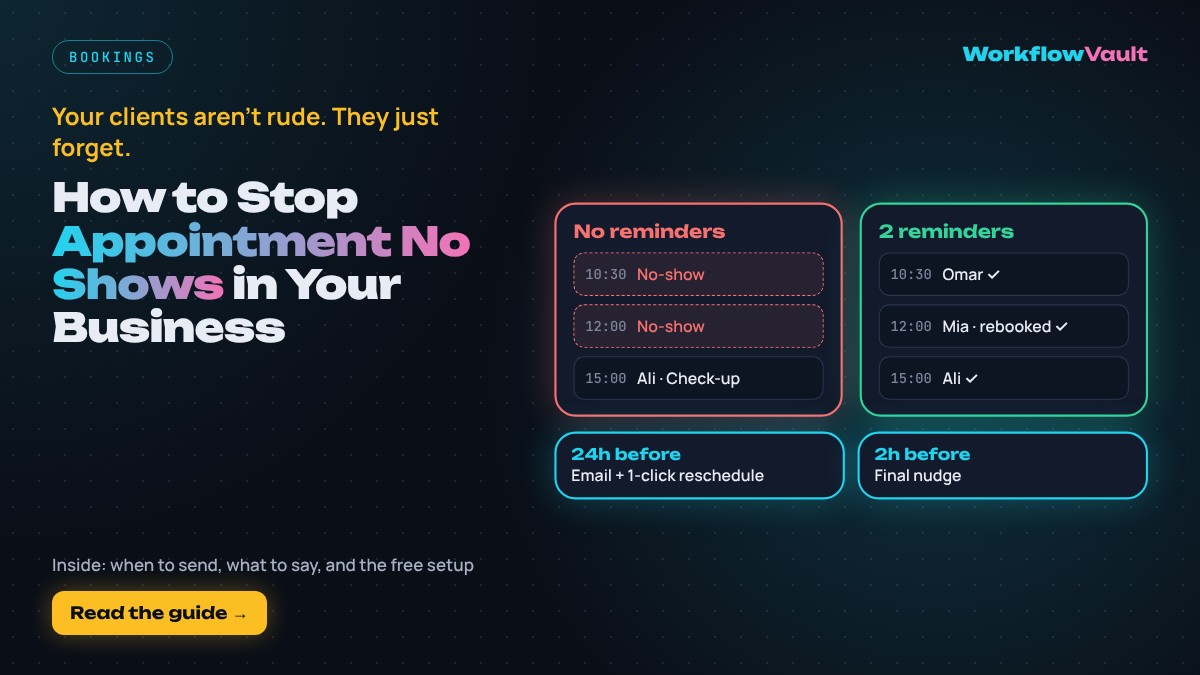
To stop appointment no shows, set up automated email reminders that go out 24 hours and 2 hours before a booking. This keeps your schedule top of mind for clients and gives them a simple way to reschedule if plans change.
Running a service business means your time is your inventory. When a client simply does not show up, that revenue is gone for good and your schedule sits empty.
Most no shows happen because people forget their booking or realize too late that they have a conflict. Manual reminder calls take too much time, so you need a reliable automated system.
Why manual reminders fail busy owners
When you are busy managing clients, fixing equipment, or running the shop floor, stopping to text or call people about tomorrow appointments is the first thing that slips. You might remember the morning ones and forget the afternoon bookings entirely.
Relying on memory means inconsistent communication. Some clients get reminders while others slip through the cracks, leading to empty slots that could have gone to paying customers.
The simple power of two reminders
Clients are busy too. Sending a reminder 24 hours in advance gives them a full day to spot a conflict and ask to move the time. Sending a second reminder 2 hours before catches people on their way or working from home.
This timing strikes the right balance between helpful and annoying. It respects your calendar while ensuring the client is prepared to arrive on time.
| Reminder Timing | What It Achieves |
|---|---|
| 24 hours before | Gives enough notice to reschedule without leaving a blank gap in your day |
| 2 hours before | Acts as a final nudge so the client leaves on time or joins the call |
Handling reschedules gracefully
Sometimes people genuinely cannot make it. The goal of a reminder is not just to force attendance, but to prompt communication so you can fill the slot with someone else.
When reminders make it easy to reply or reach out, you find out about cancellations hours ahead rather than minutes after the booking starts.
The workflow, step by step
- Your client books an appointment in your Google Calendar.
- The automation checks the calendar every hour for upcoming bookings.
- It sends a polite reminder email to the client 24 hours before the start time.
- It sends a final reminder email 2 hours before the start time.
- You focus on your service while your calendar manages itself.
Get started with automated reminders
You do not need to spend your evenings writing reminder messages or building complex software. Read more about automatic appointment reminders in Google Calendar to see how easy it is to keep your schedule full.
To set this up instantly, use the Appointment Reminders template and let your calendar run your notifications.
Frequently asked questions
Why do clients miss appointments?
Most missed appointments happen because the client simply forgot the date or time amidst their busy routine.
How far in advance should reminders go?
Sending one reminder 24 hours before and another 2 hours before gives the best results for attendance.
What if a client needs to reschedule?
Reminders prompt clients to contact you early, which gives you a chance to offer that slot to someone else.
Do I need technical skills to set this up?
No. Using ready-made templates allows you to connect your calendar and email without writing any code.
Templates for this job
Want it built around your exact tools? Custom n8n workflows from $150.