Customers · Guide
Manage Support Inbox: How to Triage Customer Emails
Quick answer
Managing a small business support inbox requires automated email classification, instant escalation for complaints, and draft responses for routine questions. By pairing AI category sorting with a central logging sheet, business owners can ensure urgent issues get immediate attention while routine FAQs receive accurate draft replies automatically.
Managing a busy support inbox quickly becomes overwhelming when routine questions, urgent complaints, and sales inquiries arrive mixed together. Without a structured process, critical customer issues get buried, leading to delayed responses, unhappy clients, and lost revenue.
Building an automated email triage system allows your business to categorize incoming messages, prepare draft replies based on standard answers, and alert your team to urgent complaints immediately. Here is a step-by-step guide to organizing your support inbox so you can maintain high service quality without spending hours every day reading emails.
Why Support Inbox Chaos Costs Small Businesses Revenue
When customer service emails arrive in a single shared inbox without categorization, team members must read every message line by line to determine what action is required. Simple routine queries take up the same visual space as severe service breakdowns or high-value customer inquiries.
This lack of structure causes response delays. A customer asking a simple question about working hours might get a response within minutes, while a client experiencing an active service issue waits hours because their message sits near the bottom of the inbox queue.
Sorting incoming support requests automatically solves this issue. By evaluating the content of each email upon arrival, messages can be labeled, logged, and routed according to urgency. You can learn more about structured customer communication strategies by reading our guide on sorting customer feedback with AI.
Step 1: Categorize Incoming Emails by Urgency and Intent
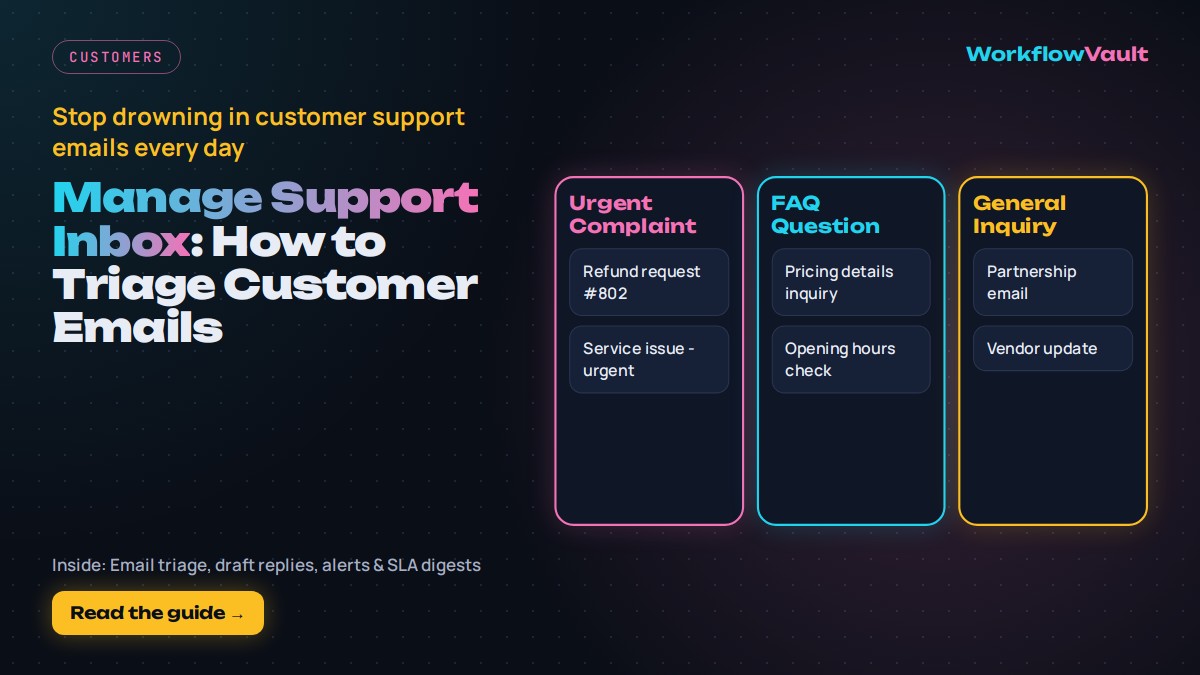
The foundation of effective support inbox management is intent classification. Every email sent to your support address generally falls into one of four core categories:
- Routine FAQs: Questions regarding business hours, location details, general pricing structure, or payment methods.
- Account or Service Requests: Requests to change bookings, update billing details, or check order status.
- Urgent Complaints: Reports of service failures, billing mistakes, or unsatisfied customers requesting immediate assistance.
- Sales or Lead Inquiries: Prospective clients asking about service packages or custom quotes.
By connecting your email account to an automated workflow, an AI model evaluates the subject line and body text of incoming messages. It assigns a clear category tag and an urgency score based on key phrases inside the email.
Once categorized, the workflow logs the email details into a central tracking sheet. This ensures every incoming message leaves an auditable trail, making it simple to monitor ticket volume and resolution status across your team.
Step 2: Build an FAQ Reference Template for AI Reply Drafts
Most service businesses receive the same set of fifteen to twenty questions every week. Typing out personalized answers to identical queries drains valuable staff time that could be spent serving clients.
Instead of manually typing responses, create a concise FAQ reference document that outlines your standard policies, scheduling procedures, and pricing guidelines. An automated workflow uses this document as context to generate personalized draft responses directly inside your email inbox.
Below is an example of a baseline FAQ reference prompt template that you can customize for your own service business:
Example AI Support Reference Template:
Business Name: Apex Auto Detailing
Policy 1 - Rescheduling: Appointments can be rescheduled up to 24 hours before the booked time using the link in the booking confirmation email.
Policy 2 - Pricing: Full vehicle detailing starts at $150. Specialized paint correction requires an on-site inspection.
Policy 3 - Location & Hours: Open Monday to Friday, 8 AM to 5 PM. Located at 100 Main Street.
Instruction: Draft a polite, professional reply to the customer's email using only the policy facts listed above. If the customer is asking something not listed, state that a manager will review their request shortly.
When an incoming email matches a routine category, the system creates a completed draft in your email client using your reference guidelines. Rather than writing replies from scratch, your staff simply reviews the pre-written draft, makes minor adjustments if needed, and clicks send.
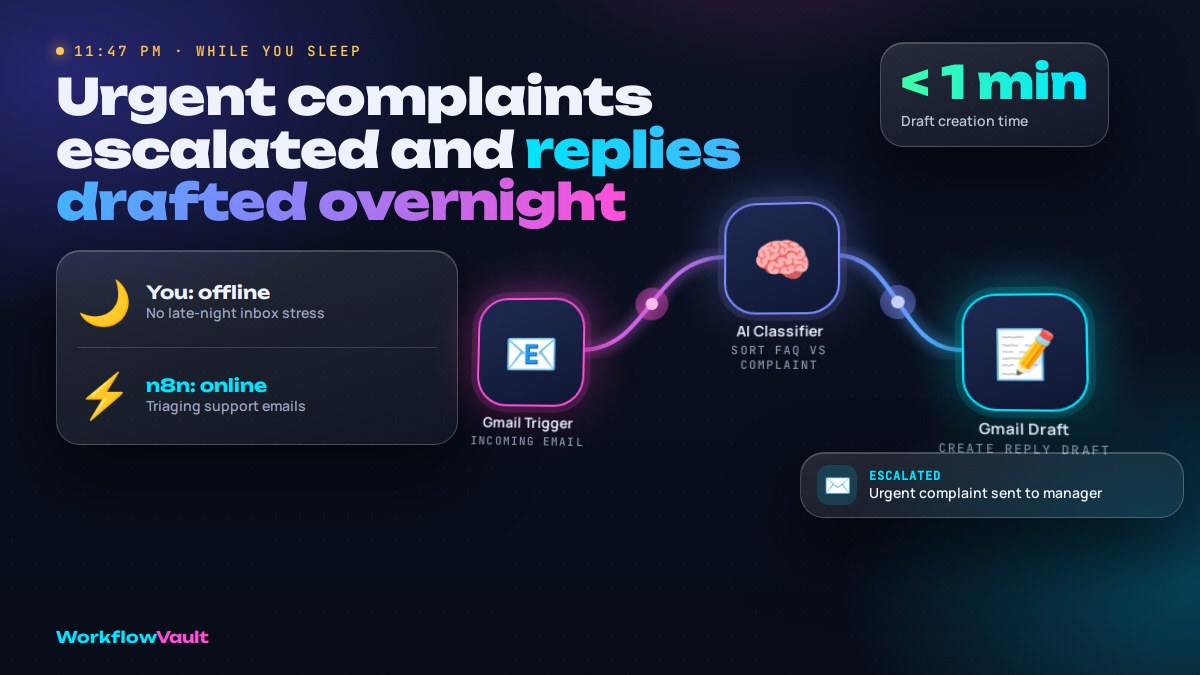
Step 3: Set Up Instant Escalations for Customer Complaints
Not all support emails should sit in an inbox waiting for routine processing. An unhappy customer or a major service disruption requires immediate action before the relationship deteriorates.
When an incoming message is classified as an urgent complaint, your workflow should bypass standard draft queueing and trigger an immediate notification. This alert can be delivered via email, text message, or chat application to your designated manager on duty.
The alert should include the customer's contact information, their original message, and a brief summary of the issue generated by the AI classifier. This gives management full context within seconds of the email arriving, allowing for swift resolution.
For business owners choosing automation infrastructure, comparing available platforms is essential. You can review our detailed comparison of n8n vs Zapier vs Make to understand how different engines handle custom email webhooks and self-hosted privacy options.
Comparing Manual Support Inbox Handling with Automated Triage
Transitioning from a manual inbox to an automated triage system fundamentally alters how customer support operations run. The table below illustrates the key operational differences between both methods:
| Support Operational Task | Manual Inbox Handling | Automated Triage Workflow |
|---|---|---|
| Category & Labeling | Staff must read each email to determine issue type manually | AI evaluates intent and assigns labels instantly upon arrival |
| FAQ Responses | Replies typed manually or copied from basic static text snippets | Context-aware draft responses created automatically in Gmail |
| Complaint Escalation | Complaints wait in line until staff reaches them in sequence | Instant alerts routed directly to managers for urgent issues |
| Activity & Volume Tracking | No central tracking unless manually logged into external software | All incoming support emails logged automatically to Google Sheets |
| Daily SLA Monitoring | End-of-day inbox review relies on manual visual checks | Automated daily summary digest emailed to managers at 5 PM |
The Workflow, Step by Step
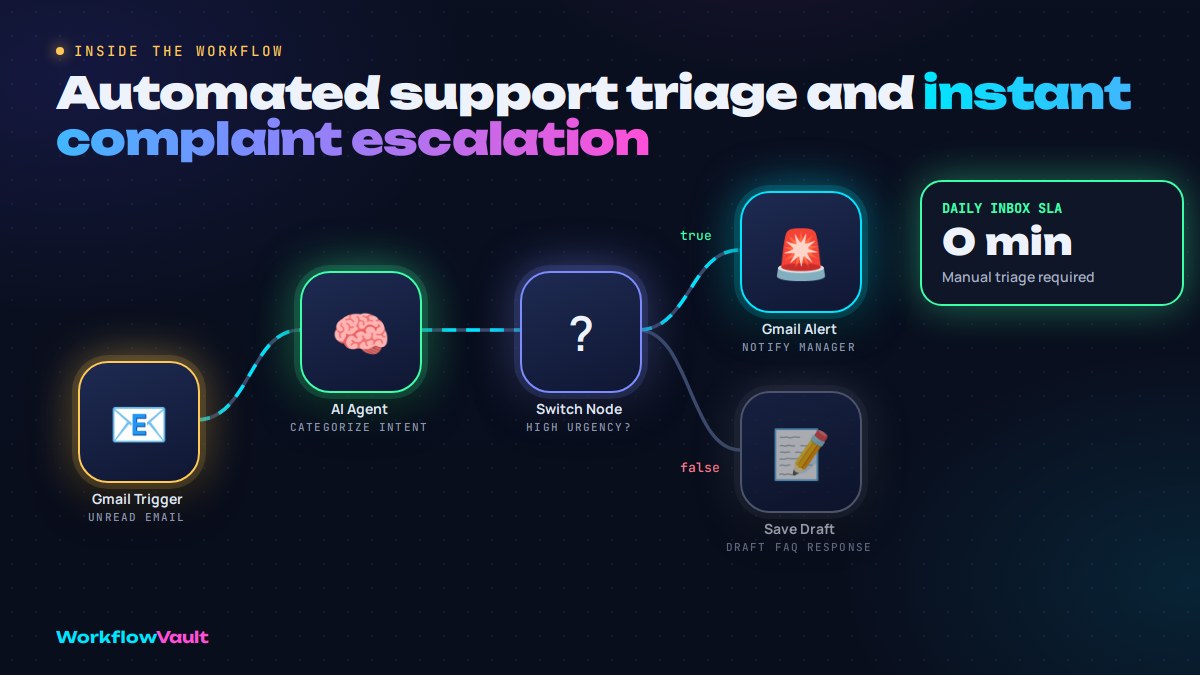
Here is how to construct a complete support inbox triage and automated response workflow using n8n, Gmail, and Google Sheets:
- Listen for New Messages: Set up a Gmail trigger node in n8n that fires whenever a new email arrives in your support inbox or receives a specific inbox label.
- Extract Email Data: Extract the sender's email address, subject line, send date, message body text, and thread ID from the incoming webhook payload.
- Classify Intent with AI: Send the message text to an OpenAI or Gemini node instructed to classify the query type (FAQ, Complaint, Account Update, General) and assign an urgency rating (Low, Medium, High).
- Branching Logic: Insert a Switch node to route the workflow execution path based on the category outcome of the AI step.
- Generate FAQ Reply Draft: For routine queries, send the message content along with your stored business FAQ reference text to an AI node. Route the output to a Gmail node configured to create a draft reply in the existing email thread.
- Send Escalation Alert: For High urgency complaints, format an alert message containing key customer details and trigger an instant notification email or message to the team manager.
- Log Support Ticket: Append a new row in your support tracking Google Sheet recorded with sender email, category tag, urgency status, draft status, and timestamp.
- Generate Daily Digest: Configure a daily Schedule Trigger node at 5 PM that queries your Google Sheet for unresolved tickets and emails a performance digest to management.
If you want to implement automated classification for customer messages without building every node manually, explore our pre-built AI Support Desk template.
Step 4: Create a Daily Inbox Digest to Track Response Times
Maintaining high customer service standards requires clear visibility into how effectively your inbox is managed. A daily Service Level Agreement (SLA) digest provides a clear breakdown of daily ticket activity without forcing managers to inspect individual email threads.
Every evening, your automated workflow compiles summary statistics directly from your tracking sheet. The digest details total emails received, how many routine drafts were generated, how many complaints were escalated, and which tickets remain open.
Receiving this summary once per day helps business owners identify recurring service problems early. If multiple clients send complaints regarding a specific billing policy or booking link, management can address the root cause immediately.
Common Support Inbox Automation Mistakes to Avoid
While automated email triage saves substantial administration time, poor setup choices can frustrate customers. Keep these key operational practices in mind when setting up your workflow:
- Sending Automated AI Replies Directly: Never set your system to auto-send raw AI-generated answers directly to customers without human verification. Always save responses as inbox drafts so team members can review them for accuracy before hitting send.
- Neglecting Contextual Safeguards: Ensure your AI classifier knows to mark sensitive topics—such as legal disputes, billing errors, or refund demands—as high-urgency items that bypass routine FAQ draft templates.
- Failing to Log Thread IDs: Always store original message thread identifiers. This guarantees that draft replies attach correctly to the existing conversation rather than creating disconnected new emails.
- Ignoring System Errors: If an API credentials token expires, your triage workflow could halt silently. Implement error monitoring nodes to catch workflow failures immediately.
Keep Your Support Inbox Clean Without Spending Hours Each Day
A disorganized support inbox creates unnecessary stress for small business owners and leads to slow, inconsistent customer communication. Establishing clear email triage rules transforms customer support from a chaotic daily chore into a structured, manageable process.
By combining automatic category sorting, context-aware draft replies, instant complaint alerts, and daily summary reporting, you keep response quality high while protecting your valuable operational time.
Frequently asked questions
Should I let AI automatically send email replies to customers?
No. The safest approach for small service businesses is to let AI generate response drafts inside your inbox. Your staff can then quickly review, edit, and send the draft with one click, ensuring full accuracy.
What happens if an email contains multiple questions?
The AI classifier evaluates the complete email body and selects the dominant intent. If a message contains a routine FAQ alongside a complaint, the system prioritizes the urgent complaint route to ensure immediate escalation.
Do I need expensive helpdesk software to triage support emails?
No. You can build a complete triage, drafting, and escalation system using n8n self-hosted paired with standard accounts in Gmail and Google Sheets.
How does the daily SLA digest work?
A scheduled workflow runs at the end of every workday, reads the support logging sheet, counts total messages received, categorizes open tickets, and emails a concise one-page summary to the business owner.
Templates for this job
Want it built around your exact tools? Custom n8n workflows from $150.