Forms · Guide
How to Send Website Form Submissions to Google Sheets (With Instant Alerts)
Quick answer
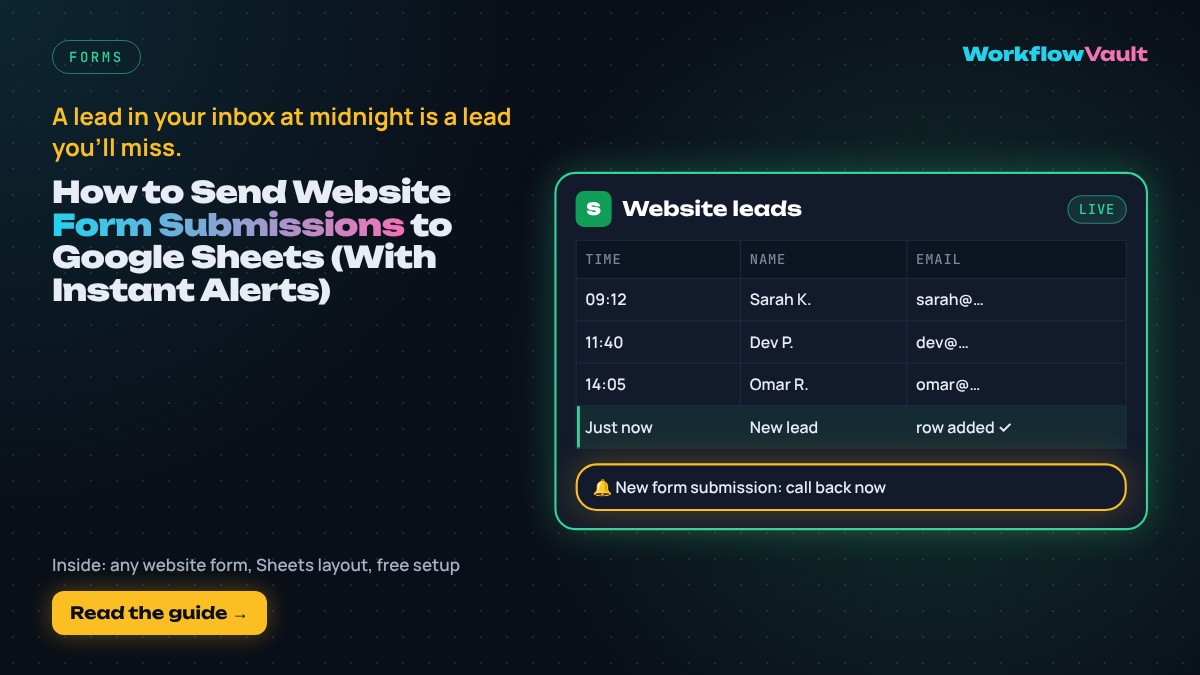
Point your website form to a webhook (or use a ready-made n8n form), have the workflow add each submission as a new row in Google Sheets with a timestamp, and send yourself an email or WhatsApp message with the details the moment it arrives.
Contact forms are where many leads arrive, and where many get lost. The notification email lands in a busy inbox, gets read on a phone, and is forgotten. Saving every submission to a Google Sheet and getting a clear alert fixes both problems: you have a complete list, and you know the moment something new arrives.
Why a Google Sheet?
- One list of every enquiry, searchable and sortable, instead of scattered emails.
- Easy to share with a partner or assistant.
- A simple pipeline: add a Status column (New, Contacted, Won, Lost) and you have a basic CRM.
- Works with everything: charts, filters, exports and other automations.
Option 1: use a ready-made n8n form
n8n has a built-in form you can share as a link or embed on your site. Choose your fields (name, email, phone, message), and every submission goes straight into your workflow. This is the quickest way if you do not have a form yet.
Option 2: connect your existing website form
If your site already has a form, send its data to the workflow's webhook URL. Many form builders and website platforms can post to a webhook or let you add one with a small script. The workflow receives the fields as JSON and handles the rest. Your visitors see no change.
Setting up the sheet
Create a sheet with a header row that matches your fields, plus a few useful extras:
| Received | Name | Phone | Message | Source page | Status | |
|---|---|---|---|---|---|---|
| 2026-11-05 10:42 | Sara K. | sara@example.com | optional | Quote for kitchen tiling | /contact | New |
Instant alerts
An alert should be readable at a glance: who, what they want and how to reach them. Email works out of the box. WhatsApp alerts need a messaging service, but are hard to miss if you are on the move. Either way, include a reply-to address so you can answer straight from the alert.
The workflow, step by step
- Form trigger or webhook receives the submission.
- Clean up: trim spaces, add a timestamp, ignore empty or spam entries.
- Google Sheets: append a row.
- Alert: email or WhatsApp with the details.
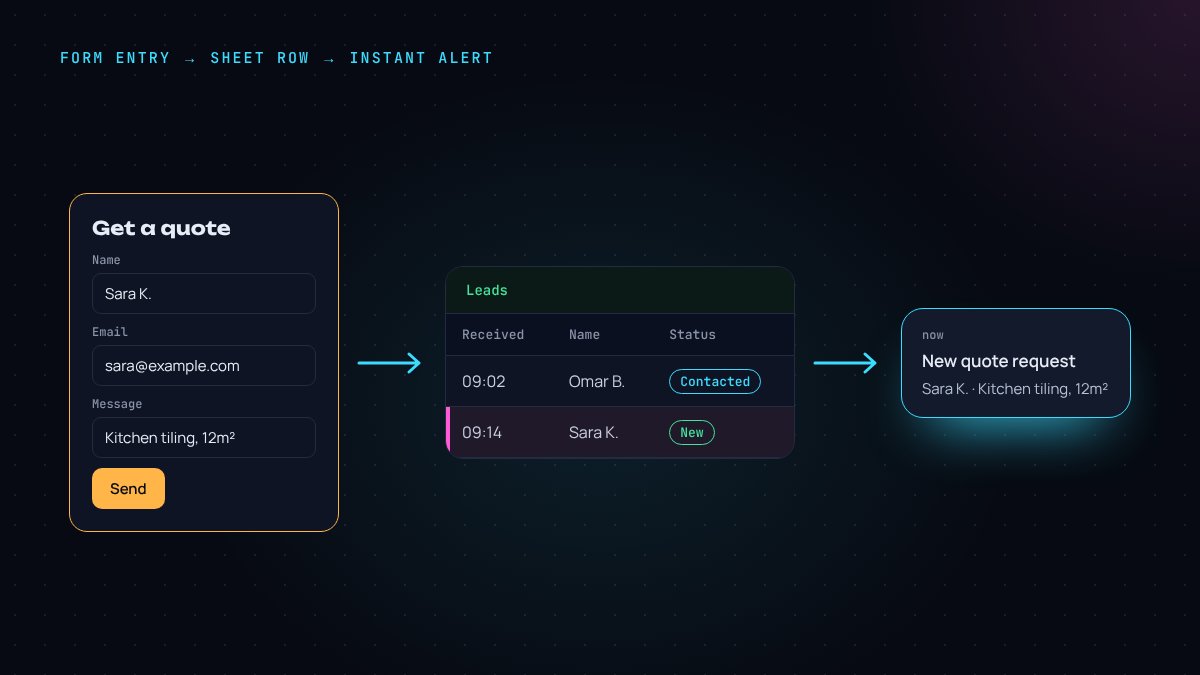
Free template
Form to Sheet + Alert
Saves every form submission to Google Sheets and alerts you by email or WhatsApp the moment it arrives. Free, about 10 minutes to set up.
Take it further
Once submissions are flowing, you can add AI to read each enquiry and draft a reply, or sort feedback by urgency. See replying to leads with AI and sorting feedback with AI.
Frequently asked questions
How do I connect a website form to Google Sheets?
Send the form data to an automation webhook, or use an n8n form, and add a Google Sheets step that appends each submission as a new row.
Can I get a WhatsApp alert for new form submissions?
Yes, with a WhatsApp messaging service connected to the workflow. Email alerts work without any extra service.
Do I need to change my website?
Only the form's destination. Point it to the webhook URL; visitors see no difference.
Is it free?
The template is free, Google Sheets is free, and self-hosted n8n is free. You only need your own accounts.
Templates for this job
Want it built around your exact tools? Custom n8n workflows from $150.