Forms · Guide
Google Form Response Email Notification With Answers Guide
Quick answer
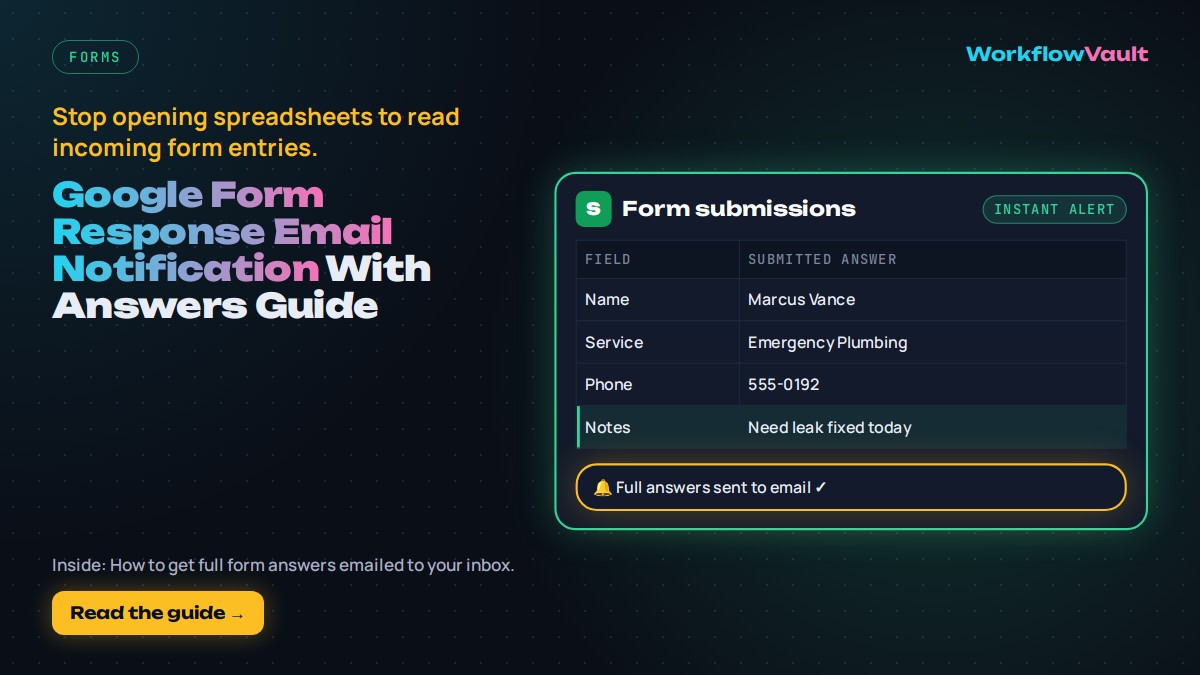
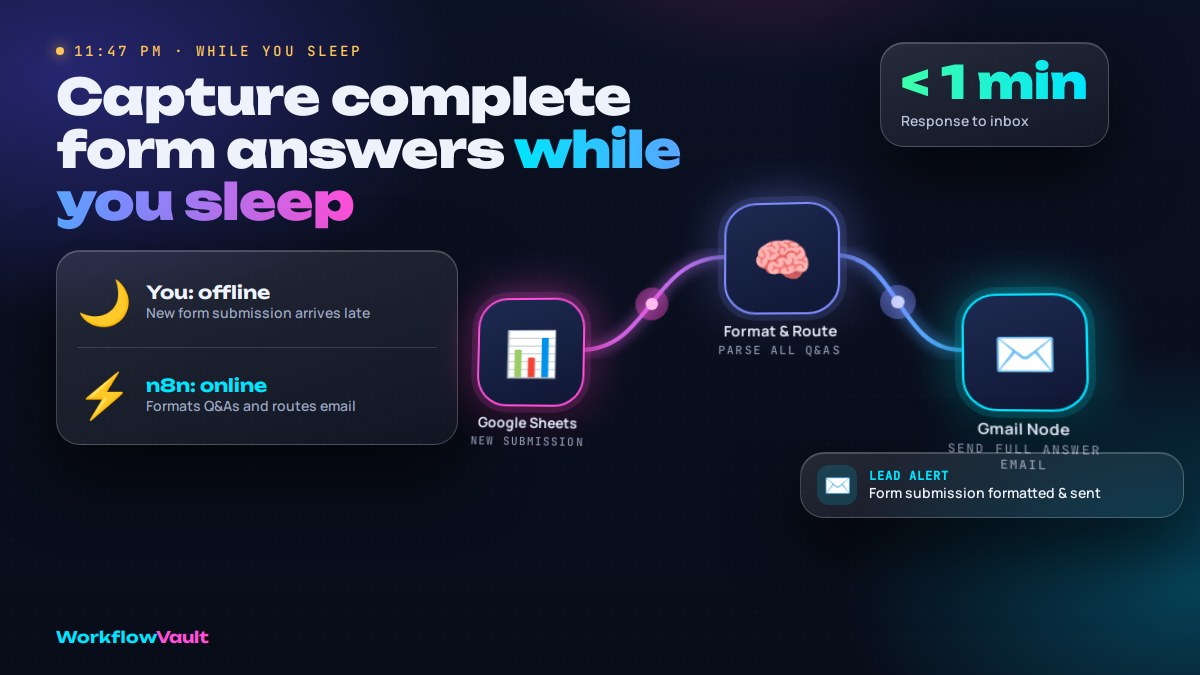
To get a Google Form response email notification with answers included, you can use Google Apps Script or connect your form responses sheet to an automation tool like n8n. Whenever a user submits the form, the automation formats every question and answer pair into a clear email body and sends it immediately to your inbox.
When a customer fills out an enquiry form on your website, every minute spent searching for their contact details is a delayed reply. Standard form alerts often only tell you that a submission happened, forcing you to log into Google Drive or open a spreadsheet just to read what the person actually requested.
Setting up a Google Form response email notification with answers delivers the entire message, contact details, and custom field entries straight to your inbox the second it is submitted. This guide covers how to set up complete email notifications, structure readable alerts for your team, and automate your lead intake workflow.
Why Standard Google Form Notifications Fall Short
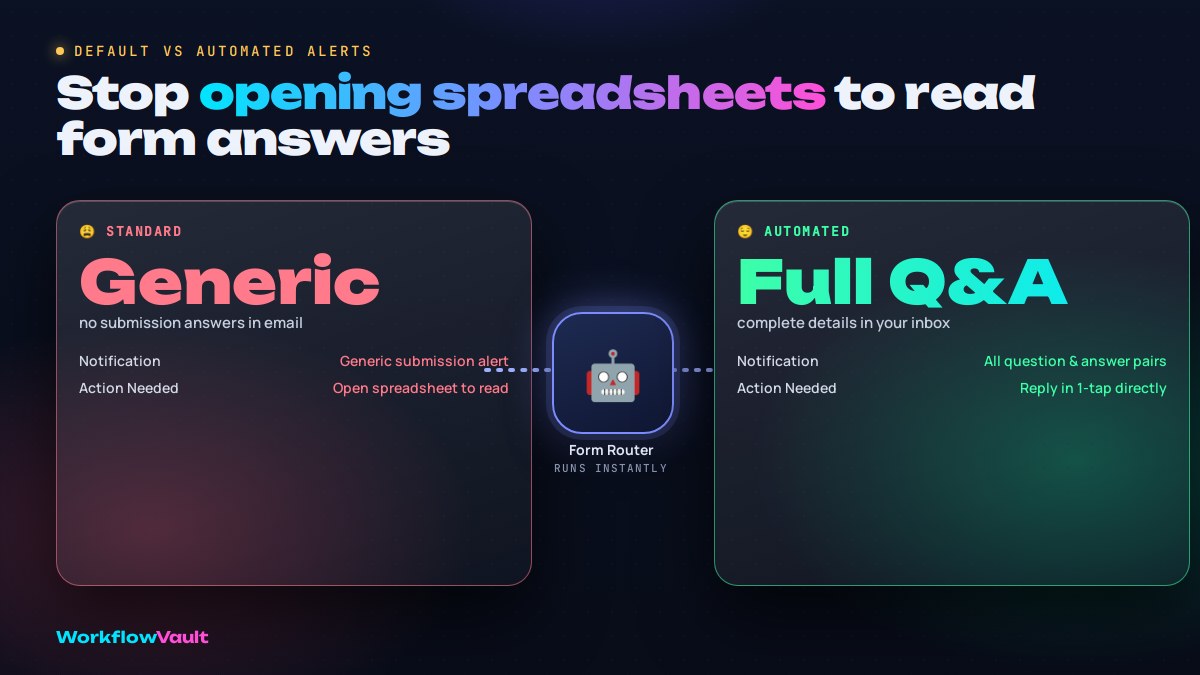
Google Forms includes a built-in setting to notify you of new responses, but the default notification message is extremely bare. It simply sends a generic email stating that your form received a new entry, without including any of the submitted data.
For a busy owner running a clinic, trade business, or professional service agency, opening a web browser and navigating to Google Sheets for every new enquiry adds unnecessary friction. If you are on a mobile device between jobs or client meetings, tapping through spreadsheets to find a phone number slows down your response time.
Receiving a google form response email notification with answers directly in your notification tray allows you to evaluate the lead instantly. You can quickly see whether an enquiry is urgent, view the requested service details, and tap to call or reply without touching a spreadsheet.
How a Google Form Response Email Notification With Answers Improves Lead Follow-Up
Fast responses convert higher than delayed replies because potential clients usually reach out to multiple service providers at once. When a client submits a form, they expect a quick confirmation that their message was received and that someone is addressing their request.
By receiving full answers in your initial alert email, you gain several operational advantages:
- Instant qualification: You can read the lead budget, location, and project summary without leaving your email application.
- One-tap calling: Phone numbers entered in the form appear directly in the email body, letting mobile users tap the number to call the lead immediately.
- Simple team forwarding: If a submission needs to go to a technician, receptionist, or project manager, you can forward the notification with all context attached.
- Better archival: Your email search bar becomes a searchable database of past customer enquiries and specific project requirements.
If you want to store these submissions reliably while keeping your team alerted in real time, using our free Form to Sheet + Alert workflow helps you organize incoming data cleanly.
Copy-and-Paste Email Template for Form Responses
When sending form entries to your inbox or distributing them to team members, layout matters. Plain wall-of-text notifications are difficult to scan on mobile screens. Formatting the email with bold headers and clear key-value pairs makes incoming data effortless to read.
Here is a clean email template layout you can use inside your automation tool or script settings:
Subject: New Lead: {{Name}} - {{Service Requested}}
Body:
You received a new submission on your website form.
Contact Details:
- Name: {{Name}}
- Email: {{Email}}
- Phone: {{Phone}}
Submission Details:
- Service Requested: {{Service Requested}}
- Preferred Date: {{Preferred Date}}
- Additional Notes: {{Message}}
Submission Details:
- Submitted At: {{Timestamp}}
- Source Form: Website General Enquiry
Using clean tags like the ones above ensures that even long form entries remain legible when viewed on a phone or smartwatch screen while on the go.
Standard Alerts Versus Answer-Rich Email Notifications
Understanding the difference between default form notifications and answer-rich email alerts highlights why an upgraded setup is essential for active businesses.
| Feature | Default Google Form Alert | Answer-Rich Email Notification |
|---|---|---|
| Full Form Answers | No | Yes |
| Direct Email Reply | No | Yes |
| Custom Subject Line | No | Yes |
| Mobile Tap-to-Call | No | Yes |
| Multi-Recipient Support | Limited | Full Control |
| Attachment Links | Requires Spreadsheet Access | Included in Email Body |
Transitioning from basic notifications to rich alerts transforms your email inbox into an active work queue rather than a collection of system links.
Setting Up Automated Email Alerts from Google Forms
There are two primary ways to create a google form response email notification with answers: writing a custom Google Apps Script attached to your form sheet, or using an automation platform like n8n.
Using an automation workflow engine like n8n provides significantly more flexibility than Google Apps Script. Script-based solutions can run into daily execution quotas, break silently when form fields change, or struggle to send alerts via multiple channels such as WhatsApp or team chat apps simultaneously.
With n8n, you can listen for new submissions, structure the HTML email notification, store the response in a central spreadsheet, and even connect to CRM tools without writing custom code. You can learn more about spreadsheet structures in our article on how to save form submissions to Google Sheets.
Additionally, once your full form notification is flowing into your email system, you can explore ways to reply to leads faster with AI by automatically drafting personal responses based on the specific answers submitted in the form.
The Workflow, Step by Step
Setting up an n8n workflow to capture Google Form entries and deliver full response notifications takes only a few minutes. Here is how the process works from start to finish:
- Create your Google Form: Build your form questions including fields for name, email address, phone number, and enquiry details.
- Link your form to Google Sheets: In the responses tab of Google Forms, click the green icon to send all submitted answers to a dedicated spreadsheet.
- Set up an n8n trigger: Add a Google Sheets node or Webhook node inside n8n that fires whenever a new row is added to the response sheet.
- Extract form fields: Map the columns from your Google Sheet (such as Name, Email, Phone, and Message) into workflow variables.
- Format the email body: Construct an HTML or plain text template using the extracted variables to present questions and answers in a clean list format.
- Send via Email node: Configure the Gmail node or SMTP node in n8n to send the email to your address, placing the submitter's email address in the Reply-To field.
- Activate and test: Submit a test entry on your live Google Form and verify that the formatted email arrives in your inbox with all answers included.
Common Mistakes to Avoid When Sending Form Answers by Email
While configuring your form response alerts, avoid these common setup mistakes to ensure high email deliverability and reliable lead tracking:
- Forgetting to set the Reply-To address: If you set the notification email's sender as your own address, hitting reply in your mail app will draft a message to yourself instead of the lead. Always configure the form submitter's email address as the Reply-To header.
- Relying entirely on native form alerts: Depending solely on built-in notifications means you will miss details if native services change their default notification layouts.
- Unformatted text blocks: Sending form answers as a single unformatted string makes reading complex enquiries on mobile devices tedious. Use clear spacing and bold headers.
- Ignoring spam filter flags: If you send hundreds of internal form notifications daily from a fresh email domain, ensure your SPF and DKIM records are configured properly so alerts do not end up in your junk folder.
- Failing to record data centrally: Sending an email without logging the entry in a spreadsheet or CRM leaves you vulnerable to lost leads if an email is accidentally deleted.
Taking Your Form Automation Further
Delivering a full google form response email notification with answers is the first step toward automating your business intake. Once your alert system is operational, you can expand the setup to handle scheduling, scoring, and follow-up messaging automatically.
Instead of manually copying incoming data into secondary systems, your automation workflow can push lead details directly into CRM tools, send instant text confirmations to the client, or notify specific team members based on the requested service area.
By building a clean, reliable intake process, you ensure that every potential customer receives attention fast, while freeing your management team from administrative busywork.
Frequently asked questions
Why does default Google Form notification not include answers?
Google Forms default notifications are designed for privacy and minimal server overhead, so they only send a generic email stating a new entry was received. To include full answers, you must use an automated script or a workflow engine like n8n.
Can I send the form response email notification to multiple team members?
Yes. Using an automated workflow allows you to add multiple email addresses in the recipient field or route notifications to specific team members based on answers provided in the form.
Will I be able to reply directly to the customer from the notification email?
Yes, as long as your notification workflow sets the form submitter's email address as the Reply-To header in the email configuration.
Do I need coding experience to set up form response notifications with answers?
No. While you can use code like Google Apps Script, using no-code and low-code platforms like n8n allows you to map form fields into emails visually without writing code.
Templates for this job
Want it built around your exact tools? Custom n8n workflows from $150.